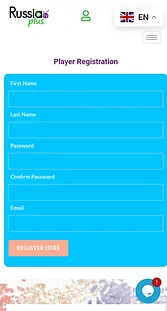
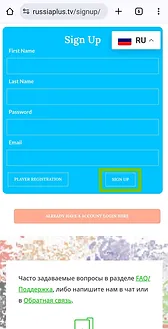
To start, register media player on our website in the “Player registration” section.
The Password field can only consist of letters, numbers, dashes, and underscores.
After registration we will provide a link where you can download the player for your device.
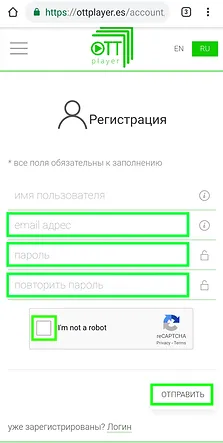
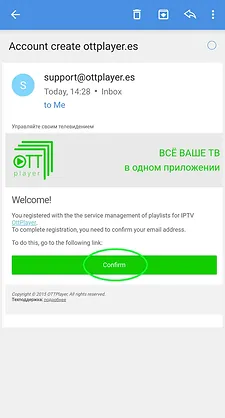
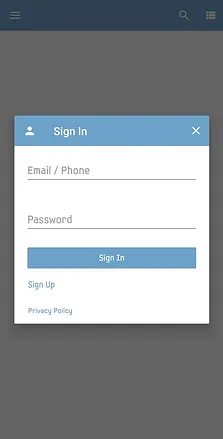
Register the Ottplayer on site ottplayer.tv with the same data with which you are registered in the "Player Registration" section.
The “e-mail” and “password” fields must match your registered data on our website.
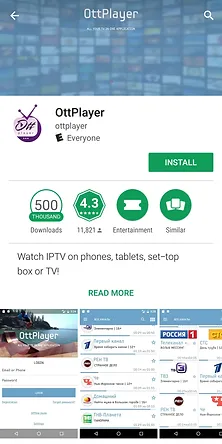
The Ottplayer can be downloaded from the App Store or Google Play Market.
Install and open it with your data (e-mail and password) registered with us.
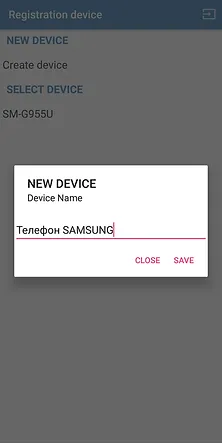
Set the “Name” to your device. For example: Samsung, iPhone, LG, Windows, etc.
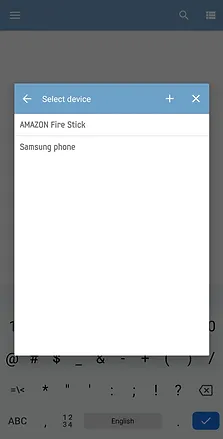
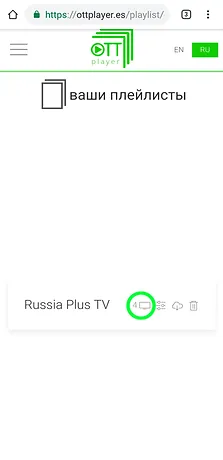
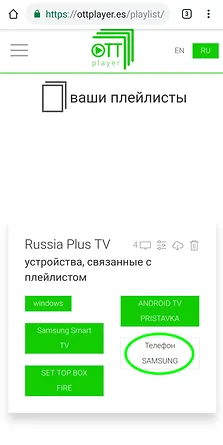
On the Ottplayer’s site go to “Playlists” and select your device.
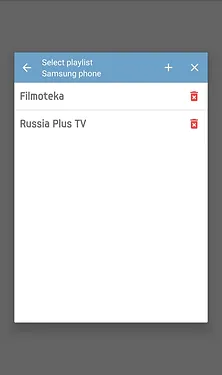
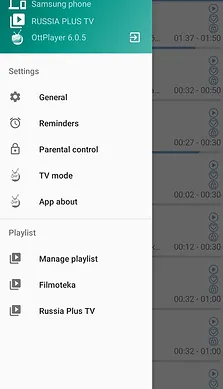
Open Ottplayer and in the “Playlists” section select Russia Plus TV.
To purchase a playlist push the button "Buy playlist" or go to your "Personal Login Account" on our website.
To purchase a playlist push the button “Buy playlist” or go to your “Personal Login Account” on our website.
Video tutorial how to connect Russia Plus TV on a Smartphone.
Video tutorial how to connect Russia Plus TV on a Smartphone with Media Station X.