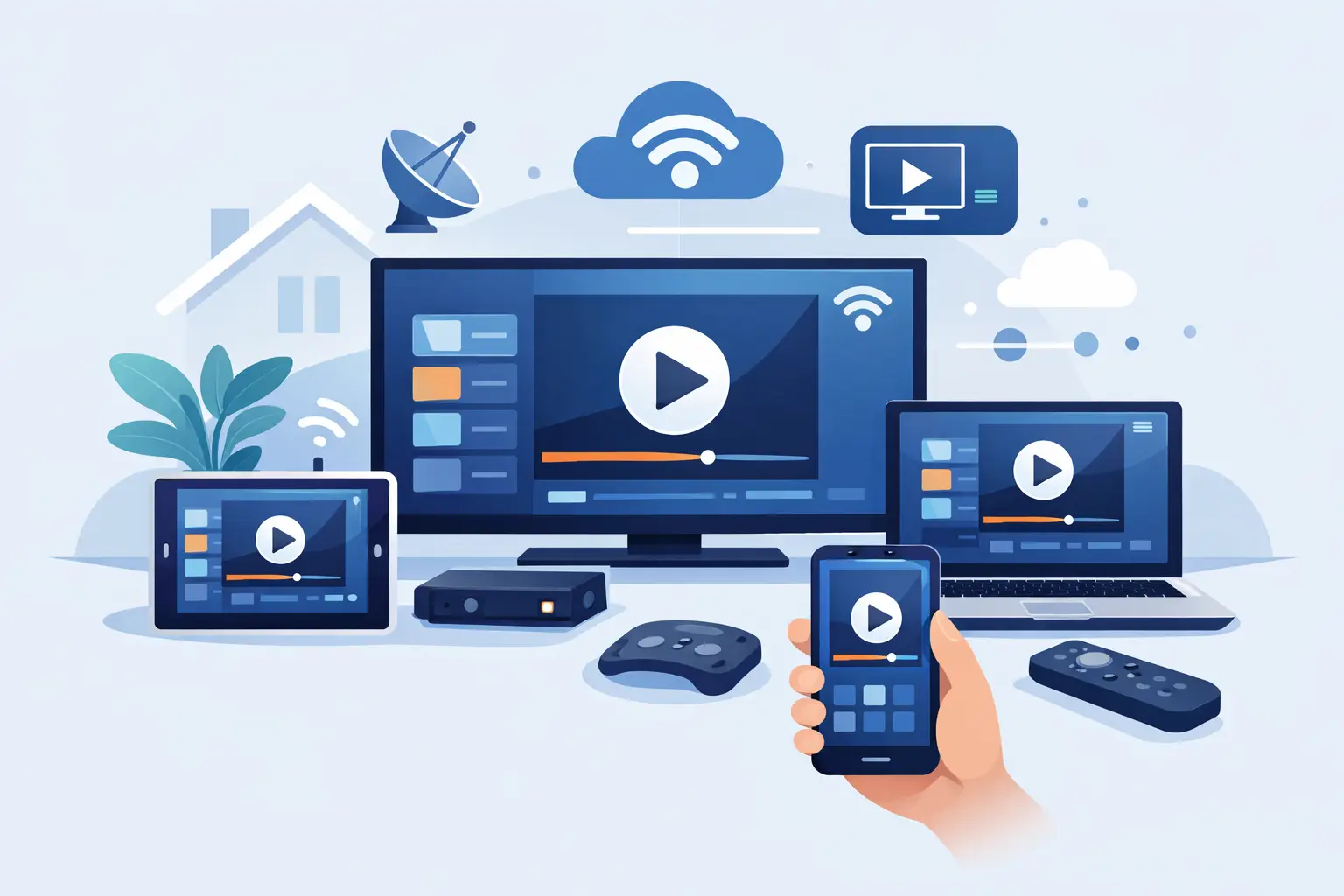
A familiar news program, a favorite Russian series, cartoons for the kids, or live sports should not require a complicated technical project. Learning how to set up IPTV is usually a matter of choosing the device you already use, installing a compatible app when needed, and entering the subscription details correctly. Once it is configured, your household can watch live channels, archives, and on-demand entertainment from one convenient service.
IPTV delivers television through your internet connection instead of a traditional cable or satellite line. That gives Russian-speaking households in the United States and around the world more flexibility: watch on the living-room TV, continue on a tablet, or catch up on a missed broadcast from a computer. The exact setup depends on your device, but the essentials remain the same.
What You Need Before You Set Up IPTV
Prepare three things before starting: a stable internet connection, an active IPTV subscription, and a compatible viewing device or player. For the best experience with HD, Full HD, or 4K programming, use a dependable home connection and avoid running several large downloads while watching.
After purchasing a subscription, you will generally receive account credentials or a playlist address in M3U or M3U8 format. Treat these details like a password. Do not share them publicly or post screenshots that show your playlist address, because access is intended for your household under the terms of your subscription.
You should also decide how your family prefers to watch. A Smart TV or TV box is usually the best choice for everyday living-room viewing. Phones and tablets work well while traveling or moving around the house. A computer is useful when you want a larger screen without changing your television setup.
How to Set Up IPTV on a Smart TV
A Smart TV is one of the simplest ways to make IPTV part of your daily viewing routine. The process varies by television brand and operating system, but it normally starts in the TV’s app store.
Search for an IPTV player that supports M3U or M3U8 playlists, install it, and open the app. You may see an option such as Add Playlist, Add Provider, Remote Playlist, or Login. Select the option that matches the information from your subscription. If you received a playlist URL, enter or paste that URL carefully. If your provider sent a username, password, and server address, choose the login method designed for those credentials.
Give the playlist a recognizable name, such as Home TV, then save it. The app may take a few moments to load channels, categories, electronic program information, and archives. Once loading is complete, open a channel to test playback.
If the picture does not start, first check the internet connection on the TV. Then confirm that every character in the playlist URL, username, and password is correct. Typing a long address with a remote can be frustrating, so use a companion phone app or a TV browser input method if your player supports it.
Smart TV setup tips
Keep the player app updated, particularly if you use channel archives or program guides. An outdated app can cause missing logos, slow guide loading, or playback errors even when the subscription is active. It is also useful to add favorite channels after your first session, so news, movies, children’s programming, and sports are easier to find.
Set Up IPTV on a TV Box or Streaming Device
Android TV boxes and similar streaming devices offer more choice in IPTV apps and are often easier to manage than a TV remote interface. Connect the box to your TV with HDMI, connect it to the internet, and open its app store.
Install a compatible player, then add your M3U8 playlist or subscription login details. Popular third-party players can include VLC, OTT Navigator, and Televizo, depending on the device and the interface you prefer. Each app uses slightly different labels, but the path is usually clear: create a playlist, select a source type, enter the details, and save.
A wired Ethernet connection is worth considering for a TV box located near your router. Wi-Fi is convenient and often works well, but a wired connection can be more consistent for high-resolution channels, especially in busy homes with multiple devices online.
After the channel list loads, test both a live channel and an archived program. Live TV confirms that the stream is working. Archive playback confirms that time-shifted viewing is available in your selected player and that the guide has loaded properly.
Use IPTV on Your Phone or Tablet
Mobile viewing is ideal when you want Russian-language television away from the main screen. Download a compatible IPTV app from your device’s official app store, open it, and add your playlist or login information just as you would on a TV.
For phones and tablets, pay attention to your connection. Wi-Fi is the better option at home. When using mobile data, video can use a significant amount of your plan, particularly in HD. Lowering playback quality when your app offers that option can help reduce data use and prevent buffering.
Mobile apps are also useful as a quick way to check whether an issue is with a television or with the internet connection. If a channel plays correctly on your phone using the same home Wi-Fi but not on the TV, the TV app, TV connection, or device settings may need attention.
Watch IPTV on a Computer
A computer can be the fastest way to begin watching, especially if you are waiting to set up a TV app. Install a compatible desktop player or use the access method included with your subscription. Enter the M3U8 playlist address or the supplied login credentials, then let the channel list populate.
VLC is a familiar option for users who want a straightforward player. Open the network stream feature, paste the playlist address, and start playback. It is a practical choice for testing a stream, although a dedicated IPTV app may provide better category navigation, favorites, channel logos, and program guide features.
For the best picture on a computer, close unnecessary browser tabs and applications before watching. If video pauses repeatedly, try connecting by Ethernet or moving closer to your Wi-Fi router. You can also test another channel. A single channel may be temporarily busy, while the service itself is working normally.
Common IPTV Setup Problems and Simple Fixes
Most IPTV setup issues come down to a small number of causes. Start with the details you entered. A missing character in a playlist URL, an extra space after a password, or a typo in a server address will prevent a player from connecting.
If your channel list is empty, refresh or reload the playlist in the app. Some players cache older information and need a manual update after a new subscription starts or when channel categories change. If only some channels are missing, check whether the app has a category filter enabled.
When channels buffer, restart the app and then restart your router if needed. Test another device on the same network. If several devices have slow internet, the issue is likely your connection rather than the IPTV player. Moving the device closer to the router, using Ethernet, or pausing other heavy internet activity can make a noticeable difference.
If your login suddenly stops working, do not repeatedly enter random passwords. Confirm that the subscription is active and that you are using the latest details provided for your account. If the problem remains, contact customer support with the device type, app name, and a clear description of the message on screen. That information makes troubleshooting much faster.
Make IPTV Easy for the Whole Family
The best IPTV setup is not necessarily the most technical one. It is the one everyone can use comfortably. Put the primary service on the living-room TV or TV box, then add it to a phone, tablet, or computer for flexible viewing where your subscription allows. Organize favorites for the channels your household watches most often, and show family members how to find archives when they miss a live program.
Russia Plus TV is built for this kind of everyday viewing, with a broad selection of Russian, Ukrainian, and regional channels alongside films, series, cartoons, documentaries, concerts, and sports. With more than 3,500 channels and support for multiple device types, it can serve as one practical entertainment source for different ages and viewing habits.
Take a few extra minutes to test the setup before movie night or an important live broadcast. Once the picture is clear, the guide is loaded, and favorites are organized, IPTV becomes less about settings and more about keeping familiar programs close to home.