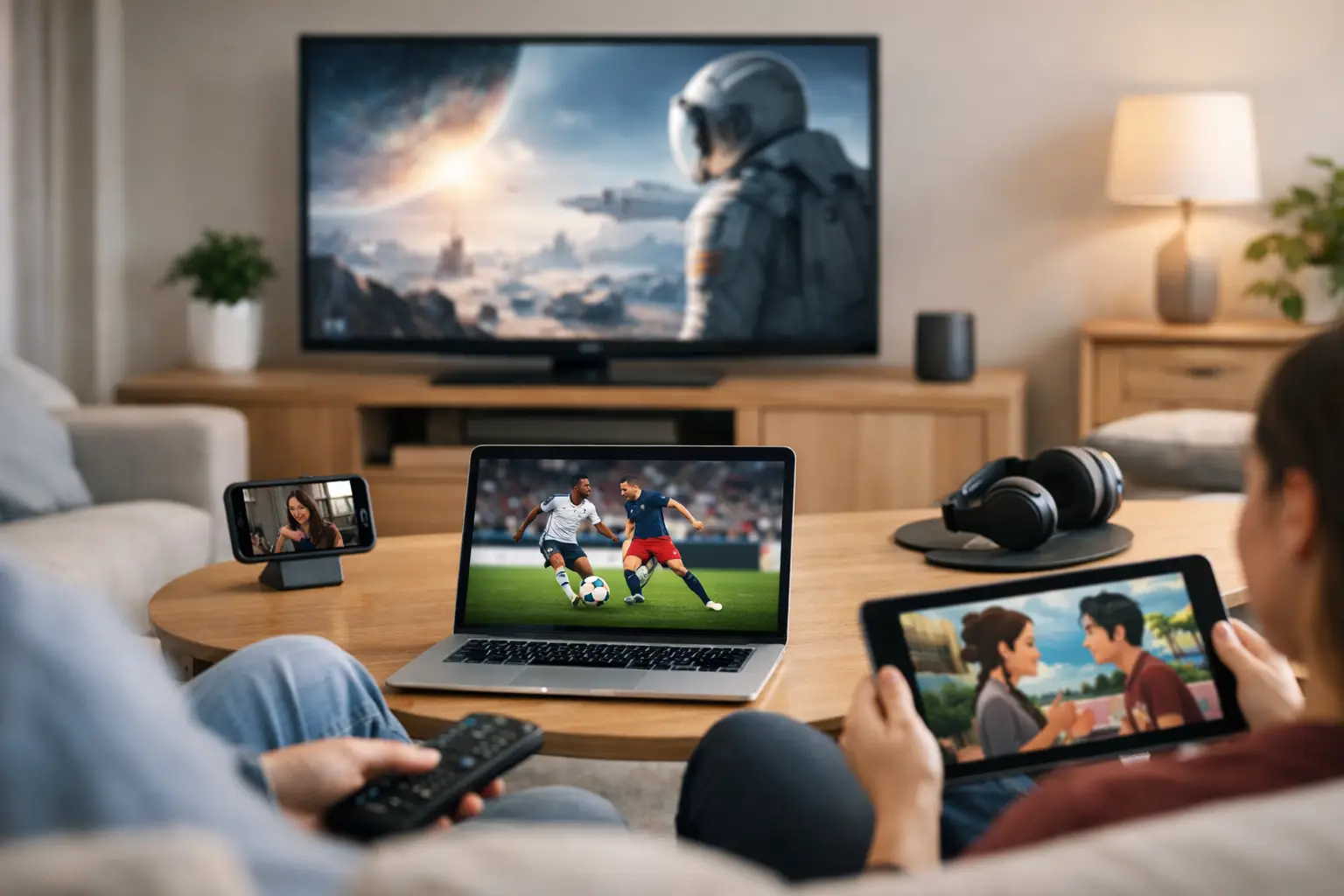
The evening news is on the living room TV, a cartoon is playing on a tablet, and someone wants to catch a football match on a phone. A guide to multi device streaming is really about making those ordinary moments easy: one TV service, familiar Russian-language content, and the freedom to watch on the screen that fits the moment.
For Russian-speaking families in the US, device flexibility matters as much as channel choice. Live television, channel archives, movies, series, children’s programming, and concerts are more useful when they are available beyond one television set. The right setup lets each member of the household watch without turning access into a technical project.
Start With the Devices Your Family Already Uses
Multi-device streaming does not require replacing everything at home. Begin by identifying the screens that are used most often. In many households, that means a Smart TV in the living room, a second TV in a bedroom, one or two phones, a tablet for children, and a computer for workday viewing.
A Smart TV or TV box is usually the best choice for long viewing sessions. It gives live channels, films, and archived programs a familiar television experience on a larger screen. Phones and tablets work well for short viewing sessions, travel, waiting rooms, or watching in another part of the home. A computer can be especially convenient for viewers who prefer a browser or want entertainment nearby while working.
The practical question is not whether every device can stream. It is which device should be the primary screen for each person. Assigning roles keeps setup simple. For example, keep the main account settings on the living room TV, use a tablet for children, and reserve a phone for personal viewing away from home.
Guide to Multi Device Streaming: Check Concurrent Viewing
Device compatibility and simultaneous viewing are related, but they are not the same thing. A service may work on many devices while your subscription plan sets a limit on how many streams can play at one time. Before adding the service to every screen, confirm how many concurrent streams are included with your plan.
This step prevents a common household problem: one person starts a channel in the kitchen and another viewer suddenly sees an interruption on the main TV. If your family often watches different programs at the same time, choose a subscription option that supports your real viewing habits rather than only the number of devices you own.
Keep account credentials private and use them within your household according to the service terms. Sharing access outside the home can create playback conflicts and makes account support harder if something goes wrong.
Build a Strong Home Connection Before You Add Screens
A large selection of HD, Full HD, 4K, and other high-quality channels needs a dependable internet connection. The more devices stream at once, the more your connection has to carry. A single standard-definition stream may work on a modest connection, while several high-definition streams and a 4K program need more available bandwidth.
Wi-Fi quality is often the real issue, not the internet plan. If the main TV is far from the router, a wired Ethernet connection can provide a steadier result. When a cable is not practical, place the router in an open, central area and avoid hiding it behind a TV cabinet or inside a closed closet.
For households with several viewers, consider a modern mesh Wi-Fi system or a Wi-Fi extender where coverage is weak. This can be useful in larger homes, basement rooms, and bedrooms at the far end of the house. Test the connection where you actually watch, not only next to the router.
Choose the Simplest App or Player for Each Screen
The best player is the one your household can use comfortably. Smart TV apps and dedicated TV-box apps are often easiest for daily viewing because their controls are designed for a remote. They are a strong choice for channel browsing, archive playback, and family movie nights.
On Android phones and tablets, a dedicated IPTV app can make it simple to organize favorites and return to recently watched channels. On computers, a compatible media player may be the more familiar option. Russia Plus TV can also be used with compatible m3u8 players such as VLC, OTT Navigator, and Televizo, giving viewers flexibility when they already have a preferred app.
There is no reason to force every device into the same interface. A remote-friendly app on the TV and a touch-friendly app on a phone is often the better combination. What matters is that each app supports the playlist or login method provided with your subscription and can display channels reliably.
Keep Setup Details in One Safe Place
Save your account information, playlist details, and setup instructions somewhere secure that the account holder can access. Do not leave credentials in a shared family chat, and do not post screenshots that reveal account details.
When entering information into a player, copy it carefully. A missing character, extra space, or outdated playlist address can stop channels from loading. If an app asks whether to refresh channels after adding a playlist, allow it to complete the update before assuming there is a problem.
Create Favorites on Every Main Device
A catalog of thousands of channels is a major advantage, but scrolling through every category is not how most people watch TV. Set up favorites on each device for news, entertainment, children’s content, sports, music, and the channels your family returns to most often.
Favorites do not always transfer automatically from one app to another. Spend a few minutes organizing the main TV first, then repeat the essentials on phones and tablets. This small step makes the service feel much more personal and helps less technical family members find what they want without assistance.
Make Archived Content Part of the Setup
Live TV is only one part of a useful household arrangement. Channel archives and recorded programs are valuable when family schedules do not match broadcast times. A parent can watch a missed news program later, while children can start a show when it suits the household routine.
Check how archive navigation works in the app you use. Some players display a program guide, while others place replay options inside the channel menu. Once everyone knows where to find past broadcasts, the household is less dependent on watching at a specific hour.
This is also a practical way to reduce competition for the main TV. Rather than waiting for a live program to finish, another viewer can use a phone, tablet, or second screen to watch an archived episode or film.
Solve Common Multi-Device Problems Quickly
If a channel buffers on one device but plays normally on another, start with the device connection. Restart the app, reconnect to Wi-Fi, and test another channel. If the issue affects every screen, restart the router and check whether other internet services in the home are working normally.
When channels are missing or the guide looks outdated, refresh the playlist in the app settings. If you recently changed subscription details, make sure the older playlist or login is not still saved in the device. Removing duplicate entries can prevent confusion.
For a TV that works poorly over Wi-Fi, move to Ethernet if possible before spending time changing app settings. For a phone that buffers only outside the house, check mobile data strength and remember that video quality may need to be lower on a limited connection.
If you need support, have the device type, app name, and a clear description of the issue ready. Saying that a particular channel freezes after a few minutes on a specific TV app is much more helpful than reporting that “nothing works.” It helps support identify whether the issue is related to the device, app, connection, or account setup.
Keep the Experience Comfortable for the Whole Family
Multi-device access works best when it feels organized rather than unlimited. Use profiles or device restrictions when they are available, especially on tablets used by children. Keep the main remote and TV app simple for older relatives, with favorite channels placed first.
A good setup should let a grandparent turn on familiar news, let children find appropriate entertainment, and let adults watch a film or replay a program without asking who is using the television. Set up the screens your household truly relies on first, test them during normal evening use, and then add more devices only when they make viewing easier.