

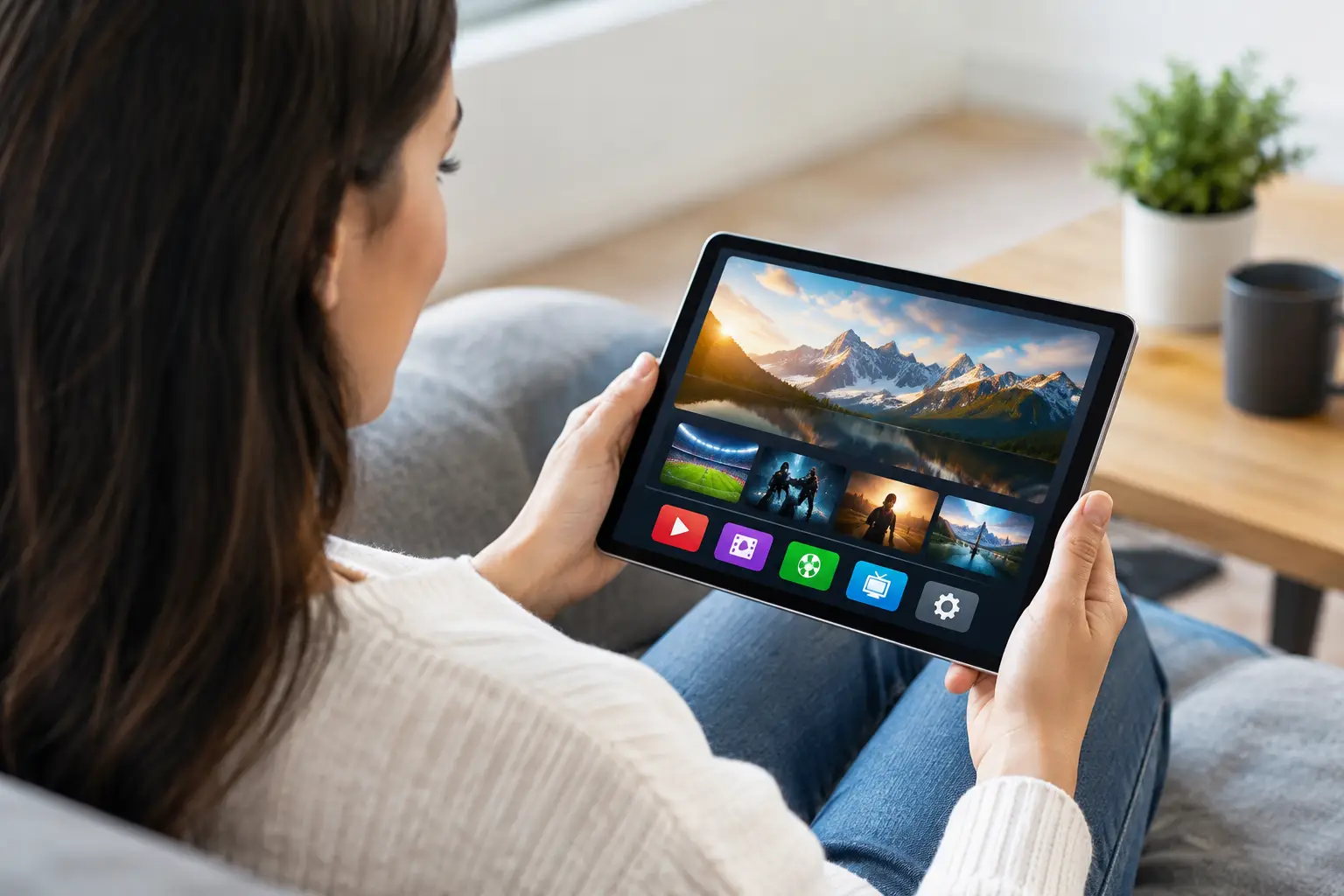
An iPad can be much more than a screen for browsing and video calls. For Russian-speaking families living in the US, it can also be a convenient way to keep live Russian TV, movies, children’s programming, and archived shows close at hand. So, can IPTV run on iPad? Yes. With an active IPTV subscription, a compatible app, and a stable internet connection, you can watch live and on-demand content directly on your iPad.
You do not need a TV box, special cables, or advanced technical knowledge. The main task is choosing an iPad-compatible IPTV player and adding the playlist or login details provided with your subscription. Once set up, the iPad works well at home, while traveling, or when someone else in the household is using the main television.
Can IPTV Run on iPad Without Extra Equipment?
Yes. IPTV runs on an iPad through an app that reads a streaming playlist, often supplied as an M3U or M3U8 link. The player organizes the available channels and video library, then plays the stream over Wi-Fi or mobile data. The iPad itself handles the video playback, so no external receiver is required.
This is especially useful for households that want flexibility. One person can watch a live news channel on the living room TV while another watches a series, a sports broadcast, or a children’s channel on an iPad. A tablet is also a practical second screen for the kitchen, bedroom, backyard, or a trip away from home.
Your experience depends on three things: the quality of your IPTV provider, the player you use, and the speed of your connection. A good subscription provides reliable channel access and an organized archive. A well-supported player makes it easier to search channels, adjust settings, and resume viewing. Strong Wi-Fi helps prevent buffering, particularly with Full HD or 4K streams.
What You Need to Watch IPTV on an iPad
Start with an iPad running a current version of iPadOS. Older devices may still play IPTV, but newer software generally offers better app compatibility and more consistent performance. You will also need an active subscription from a legitimate IPTV service and the account details, portal address, or playlist URL it provides.
Finally, install an IPTV player from the App Store. Some providers offer their own iPad app, while others support third-party players that accept M3U/M3U8 playlists or portal logins. App availability can change by country and App Store region, so it is best to confirm which player your provider currently recommends before subscribing or setting up your account.
For most viewers, a Wi-Fi connection is the easiest option. If you plan to watch outside the home using cellular service, check your data plan first. Live television uses more data than ordinary browsing, and higher video quality uses more than standard-definition viewing.
Choose the Right IPTV Player
The best player is not always the one with the most settings. For everyday viewing, look for an app with a clear channel guide, search, favorites, parental controls if needed, and support for your provider’s login method. If your household uses channel archives, make sure the player clearly displays replay or catch-up programs.
Some apps are free with limited features, while others may require a one-time purchase or subscription for advanced options. That cost is separate from your IPTV subscription. Before paying for a player, test whether it accepts your playlist and loads the channels correctly.
A player should never be confused with the content service itself. The app is the viewing tool. Your IPTV subscription supplies the channels, archive access, and on-demand catalog.
Add Your Playlist or Account Details
Setup usually takes only a few minutes. Open the IPTV player, select the option to add a playlist, provider, or remote source, and enter the details exactly as supplied. This may be an M3U/M3U8 URL, a server address, or a username and password combination.
Avoid typing long playlist links by hand when possible. Copy and paste them carefully, because one missing character can prevent the playlist from loading. If the service provides an activation code or QR-based setup, use that method when supported by the app.
After the playlist loads, give the app a moment to organize the channel groups and electronic program guide. You can then save favorite channels for faster access. For a family setup, favorites are useful for keeping news, entertainment, sports, movie channels, and children’s programming easy to find.
Getting the Best Picture on an iPad
An iPad display is well suited to HD viewing, but the highest stream quality is not always the best choice. If your Wi-Fi is strong and you have an unlimited home internet plan, HD or Full HD can provide a sharp picture. If the stream pauses, drops quality, or buffers, switch to a lower-quality version of the channel if your service offers one.
When watching on cellular data, standard definition is often the more practical option. It reduces data usage and may play more reliably in areas with weaker coverage. A shorter delay before playback is usually better than a sharper picture that pauses every few minutes.
At home, place yourself reasonably close to the Wi-Fi router or use a mesh Wi-Fi system if your signal is weak in certain rooms. Closing bandwidth-heavy downloads and other video streams can also help during major live events. If several family members are watching at once, your home internet plan needs enough speed to support multiple streams.
For comfortable viewing, use the iPad in landscape orientation and enable Do Not Disturb when you do not want calls or notifications covering the screen. Headphones are helpful for late-night viewing, while Bluetooth speakers can improve sound in a kitchen or bedroom.
Watch Live TV, Archives, and On-Demand Content
IPTV on iPad is not limited to live channels. Depending on your subscription, you may also have access to archived broadcasts and an on-demand library. This matters when time zones make live viewing inconvenient. Instead of planning your day around a broadcast schedule, you can return to a program after work, during a child’s nap, or whenever the household is ready.
Archived content is particularly useful for news programs, talk shows, series, and sporting events. The exact replay period varies by service and channel, so check the available archive window in your guide. On-demand movies, series, documentaries, concerts, and cartoons give the iPad more of the flexibility people expect from modern streaming.
Russia Plus TV is designed for this type of multi-device viewing, with a broad Russian-language channel selection, archives, and entertainment options that can be accessed through compatible apps and playlist players. The iPad can be a simple extension of your family’s main TV setup rather than a separate service to manage.
Common iPad IPTV Problems and Simple Fixes
If channels do not load, first check whether your internet connection is working in another app or browser. Then confirm that your playlist URL or account details were entered correctly. Expired subscriptions, changed passwords, and copied spaces at the beginning or end of a link are common causes of login problems.
If video buffers, test another channel and lower the stream quality if available. A problem affecting every channel may point to Wi-Fi or mobile data. A problem affecting one channel may be temporary on the source side. Restarting the player and the iPad can resolve minor app issues, especially after an iPadOS update.
When the guide is missing or outdated, refresh the playlist inside the app. Some players update program information automatically, while others need a manual refresh. If the issue continues, use your provider’s support instructions rather than repeatedly reinstalling the app. Support can verify whether the playlist, portal, or account is active.
Do not share your account details or playlist link publicly. Treat them like a password. Sharing can create security issues and may violate the terms of your subscription.
Is an iPad a Good Choice for IPTV?
For personal viewing and flexible family use, an iPad is an excellent IPTV device. It is portable, has a high-quality display, and supports familiar touch controls. It is less ideal if you want the largest possible picture for a group movie night, but you can keep the iPad for individual viewing while using a Smart TV or set-top box for the main screen.
The most useful approach is to set up IPTV on the devices your household already uses. Keep live channels and familiar programs available on the television, then use the iPad for archived shows, travel, and those moments when everyone wants to watch something different. A few minutes of setup can turn the tablet you already own into a dependable window to the Russian-language entertainment your family enjoys.