
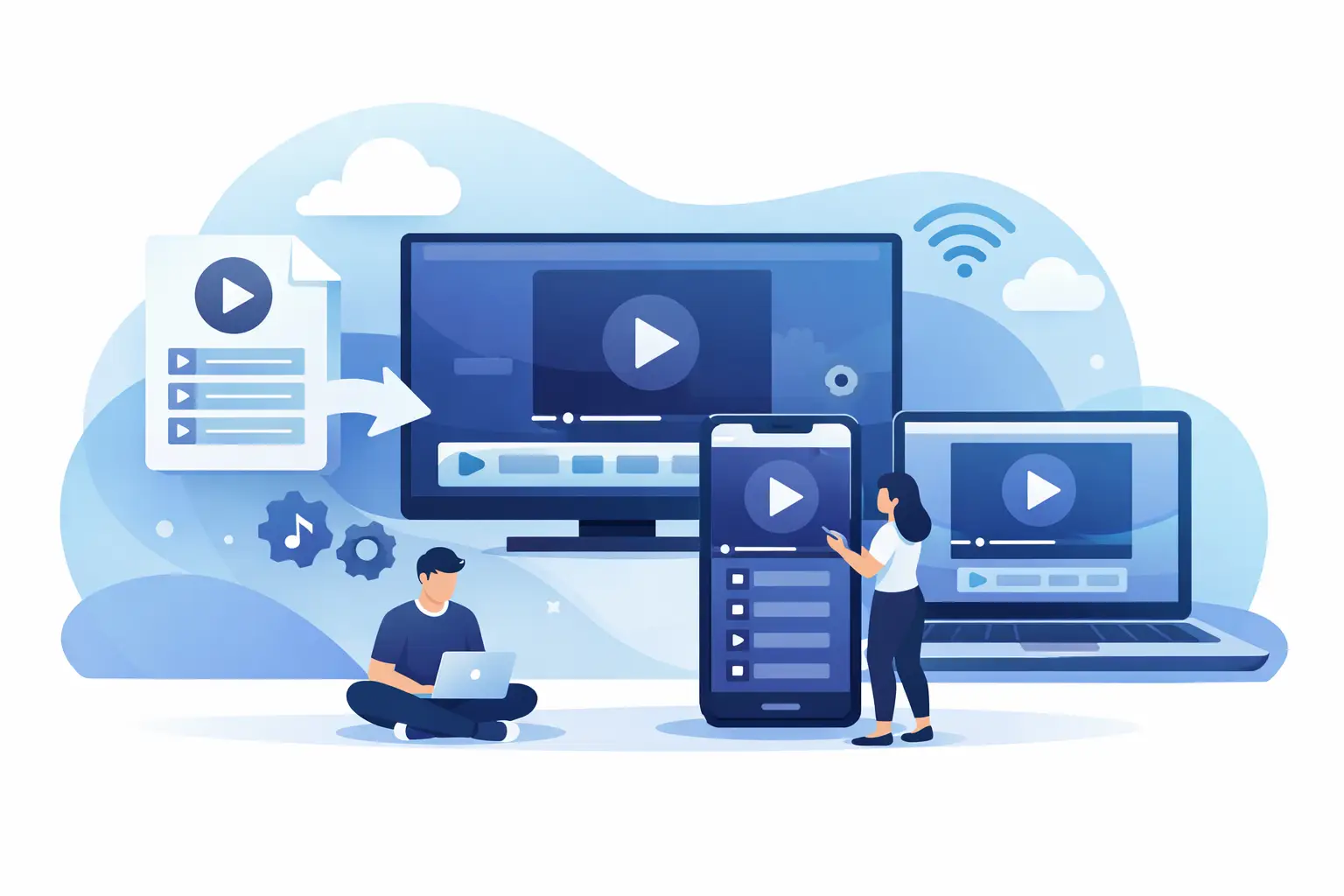
You usually find out how to add m3u8 playlist right after purchase – when you have the playlist URL in front of you, the app is open, and you want your channels working in the next few minutes. The good news is that setup is usually simple. The only real difference is the device and player you use.
An M3U8 playlist is a file or URL that tells your IPTV player where to load channels, streams, and sometimes channel groups or guide data. Most modern IPTV apps support it, including popular options on Smart TVs, Android boxes, phones, tablets, and computers. If your service gives you an M3U8 link, you normally just copy it into a compatible player, save it, and let the app load your channel list.
What you need before you add an M3U8 playlist
Before you start, make sure you have three things ready: a working playlist URL, a compatible player, and a stable internet connection. If even one of these is missing, setup can look broken when the problem is actually basic.
Your provider may send the playlist as a direct URL, a downloaded file, or both. In most cases, the URL is easier because it can refresh more cleanly when content updates. If you got login credentials instead of a direct link, check whether your app supports portal or Xtream login too. Some players support multiple login types, while others are focused only on M3U and M3U8 imports.
It also helps to know what device you are setting up. On a phone, copying and pasting is quick. On a Smart TV, typing a long URL with a remote can be slow, so some apps offer QR code login, sync options, or companion setup from another device.
How to add M3U8 playlist in most IPTV players
The basic process is nearly the same across apps. Open your IPTV player, choose the option to add a playlist, select M3U or URL, paste your link, name the playlist, and confirm. After that, the app starts loading channels.
Some players ask whether the source is a local file or a remote URL. If you have a link from your provider, choose the remote or network option. If you downloaded a file to your device, choose file import instead. A URL is often better for ongoing use because it is easier to update without re-uploading a file every time.
Once the playlist loads, give the app a minute to organize channels, categories, and logos. Large channel packages can take longer, especially on older TVs or lower-powered streaming devices. That does not always mean something is wrong.
Adding an M3U8 playlist on Smart TVs
Smart TVs are a popular choice because they turn IPTV into a living room experience with no extra screen needed. The trade-off is that TV apps can be more limited than mobile or desktop apps, and typing with a remote is rarely fun.
Start by installing a player that supports M3U8 playlists. Open the app and look for Add Playlist, Add Source, or New Playlist. Choose URL if that is what you received, then enter the link carefully. One wrong character can stop the playlist from loading.
If your TV app supports a device code or web-based activation, use it. This is often the fastest route because you can enter the playlist from your phone or computer instead of typing everything on the TV. If your app does not offer that option, double-check uppercase and lowercase characters before saving.
On some Smart TVs, app performance depends on available memory. If the playlist loads slowly, close other apps and restart the TV. A wired connection can also help if your Wi-Fi is crowded.
How to add M3U8 playlist on Android boxes and Fire TV devices
TV boxes are often the easiest setup for IPTV because they support a wide range of players and have more flexibility than many built-in TV app stores. Apps like OTT Navigator and Televizo are common choices because they are straightforward and designed for IPTV use.
After installing the player, open it and add a new playlist. Select M3U URL, paste your link, and save. Most apps will scan the playlist and build channel groups automatically. If the service also provides an EPG link, you can usually add that in the same settings area to show program schedules.
If you use a remote and pasting is awkward, some devices let you install a remote keyboard app or pair a Bluetooth keyboard. That small step can save time, especially if you manage more than one playlist.
Adding an M3U8 playlist on iPhone, iPad, or Android phones
Phones and tablets make setup fast because copying links is simple. Open your player, tap Add Playlist, choose URL, and paste the M3U8 link. Name it something clear so you can recognize it later if you add more than one source.
Mobile apps are convenient for personal viewing, travel, and testing a playlist before putting it on a TV. They also make it easier to troubleshoot. If the playlist loads on your phone but not on your TV, the issue may be the TV app, device limitations, or local network behavior rather than the playlist itself.
On mobile data, streaming quality can vary. If you see buffering, switch to Wi-Fi or lower the playback quality if your app supports that option. Live TV is more sensitive to unstable connections than short clips on social media.
How to add M3U8 playlist on a computer
If you want the simplest test environment, use a computer. VLC is one of the most familiar players for M3U8 playback, and many IPTV users start there because it is widely supported.
In VLC, you can open a network stream and paste the M3U8 URL directly. If your provider supplies a full playlist with many channels, some dedicated IPTV players on desktop may be easier to manage because they organize categories better than a standard media player. VLC is useful for testing and playback, but it is not always the most comfortable option for browsing a very large TV package.
A computer is also helpful when you need to verify whether a problem is with the playlist or with a specific app. If the link works on desktop but fails elsewhere, you have narrowed down the issue quickly.
Common problems when adding an M3U8 playlist
The most common issue is a bad copy of the URL. Extra spaces, missing characters, or line breaks can break the playlist immediately. If the link came through email or chat, make sure you copied the complete address.
The second issue is app compatibility. Not every media app handles IPTV playlists the same way. Some apps play only single streams, while others are built to manage full channel lists, categories, archives, and guides. If one player struggles, trying another compatible app is often faster than forcing the wrong one to work.
The third issue is account status or playlist expiration. Some links stop working if a subscription has ended or if the connection limit has been reached on too many devices at once. If the playlist suddenly fails after working before, that is worth checking.
Internet stability also matters. A playlist may load but channels may buffer or fail to start if your connection is inconsistent. In that case, the playlist itself is not the problem. Your player can only work with the stream quality your network allows.
Getting better results after setup
Once your playlist is active, spend a minute organizing the app. Many players let you favorite channels, hide categories you do not use, and set a default player behavior. That makes daily viewing much easier, especially for families who want quick access to news, movies, kids programming, and sports.
If your service includes archives or catch-up content, check whether your player supports those features. Not every app handles advanced options equally well. The same goes for EPG support, channel logos, and multi-screen viewing. A basic player may be enough for live channels, but a more capable app can make a big difference if you want the full experience.
For viewers who want broad Russian-language TV access across multiple devices, services such as Russia Plus TV are designed to work with common M3U8-compatible players, which makes setup more flexible whether you watch on a Smart TV, phone, tablet, computer, or TV box.
When file upload is better than URL import
Most people should use a URL, but there are cases where a file upload makes sense. If your device is offline from email or messaging and you already downloaded the playlist file, importing that file can be quicker. It can also help when an app has trouble parsing a pasted link.
The downside is maintenance. If the provider updates the playlist, a local file may not refresh automatically. You may need to download and import a new version later. For long-term use, a direct URL is usually more convenient.
A simple way to think about it
If you are wondering how to add m3u8 playlist without getting stuck in technical details, keep it simple: use a compatible player, choose URL import when possible, paste the link carefully, and test on the easiest device first. Once it works on one screen, moving it to the rest of your devices is usually much easier.