

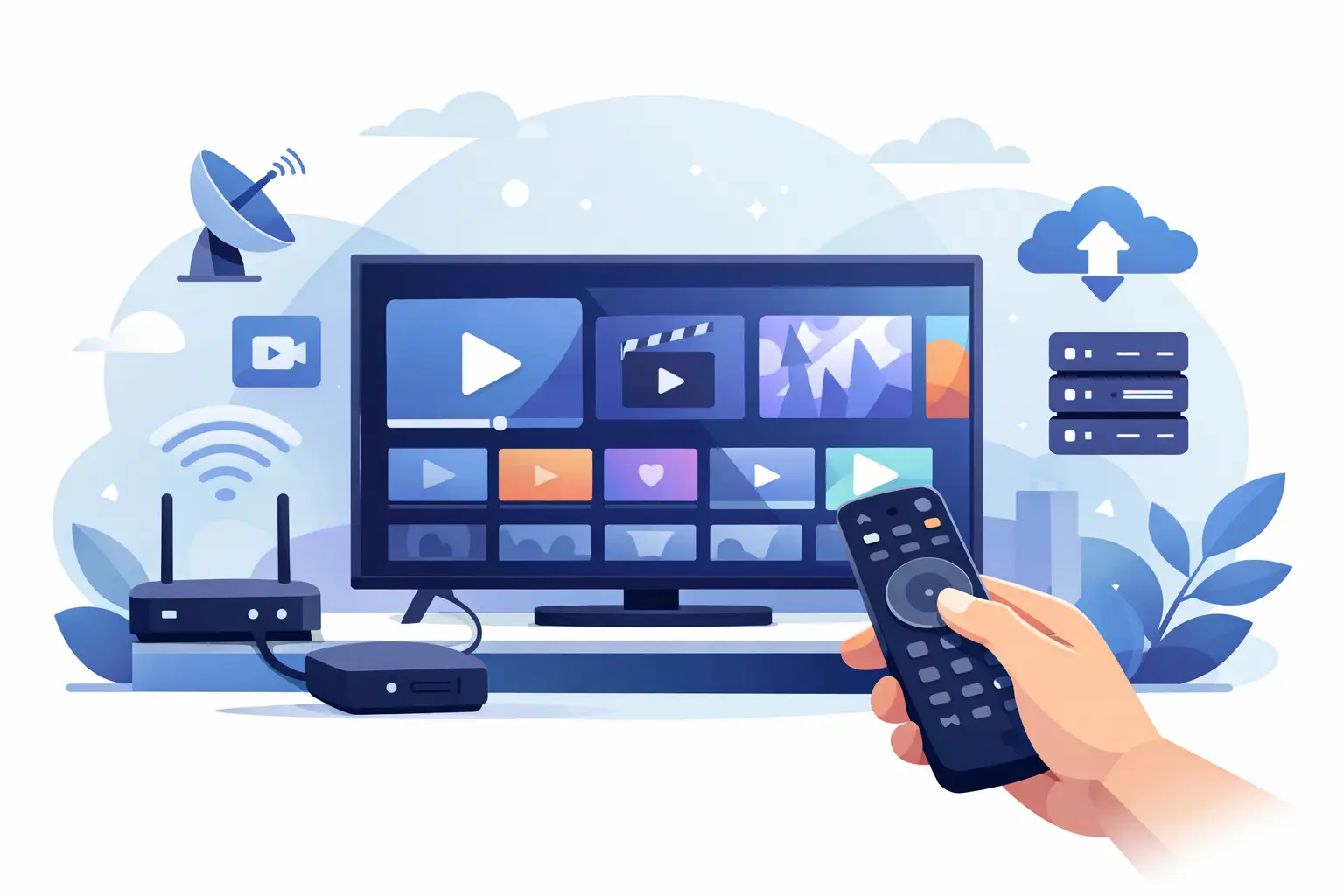
If your Smart TV is ready but you are still staring at an empty screen, a clear iptv setup example for smart tv use can save a lot of trial and error. Most people do not need advanced networking or special hardware. In most cases, you just need a compatible app, your subscription details, and five to ten minutes to get live channels, archives, and on-demand content working properly.
For Russian-speaking families in the US, the goal is simple: turn the TV you already own into a reliable source of familiar channels, movies, series, kids’ programming, and sports. The good news is that Smart TV setup is usually straightforward. The part that changes is not the IPTV service itself, but the TV brand, the app you install, and the login method your provider supports.
A practical IPTV setup example for Smart TV users
Here is a real-world example that matches how most subscribers set things up at home. Let’s say you have a Samsung or LG Smart TV, a stable home internet connection, and an IPTV subscription that provides either an M3U playlist, Xtream Codes login, or a portal URL. That is the full starting point for most installs.
First, open your TV’s app store and search for an IPTV player that works with your subscription format. Some apps are designed for M3U playlists, while others support Xtream Codes or MAC-based portal login. This matters because the app has to match the credentials you receive. If your provider gives you a playlist link and the app only accepts portal login, setup will stall immediately.
Once the app is installed, open it and choose the login method. If you were given an M3U URL, paste that link into the playlist field. If you received a username, password, and server URL, select the Xtream Codes option and enter each field carefully. On some Smart TVs, typing with the remote is the slowest part of the process, so many users prefer apps that let you activate or enter details from a phone or computer.
After you submit the details, the app should load channel groups, video-on-demand sections, and sometimes catch-up or archive categories. If the list appears but channels do not play right away, the issue is often local rather than account-related. A quick app restart, TV reboot, or network refresh often solves it.
What you need before you start
Before setup, make sure your TV is connected to the internet and that the connection is strong enough for streaming. For HD and Full HD viewing, home Wi-Fi is often enough if the router is close to the TV. For 4K channels, a wired Ethernet connection is usually the safer choice. IPTV can work over Wi-Fi, but performance depends on your signal quality, your internet plan, and how many devices are using the network at the same time.
You also need the right subscription information. Most IPTV services provide one of three formats: an M3U playlist link, Xtream Codes credentials, or portal access for a MAC-based app. If you are not sure which one you have, check the welcome message or account details before downloading an app. Choosing the right player from the beginning keeps the process simple.
A final detail is app compatibility. Not every Smart TV runs the same operating system. Samsung uses Tizen, LG uses webOS, and Android TV or Google TV models support a broader range of apps. That is why one household may install in two minutes while another needs a different player. It is normal, and it does not mean anything is wrong with your subscription.
Best app approach for Smart TV setup
The easiest setup is usually the one that matches your login format with the fewest manual steps. If your provider supports third-party players such as OTT Navigator, Televizo, or another M3U8-compatible app, the process is often very smooth on Android TV and related platforms. On Samsung and LG TVs, app choice can be narrower, so it helps to confirm which apps are available in the TV store before you begin.
If you have multiple devices at home, there is also a convenience factor. Some users prefer to use one app style across TV, phone, and tablet so the menus feel familiar everywhere. Others care more about getting the best Smart TV experience, even if the mobile app looks different. Neither approach is wrong. It depends on whether your priority is simplicity across devices or the best fit for one screen.
For family viewing, a good IPTV app should make channel groups easy to browse, support favorites, and handle archives without confusion. The more content you have access to, the more important this becomes. A service with thousands of channels and a large film library is only useful if the interface helps people find what they actually want to watch.
Step-by-step Smart TV login example
Start by installing the player app from your TV’s app marketplace. Launch it and look for an option such as Add Playlist, Add User, Login, or Portal Setup. The wording changes by app, but the flow is similar.
If your provider gave you an M3U link, choose playlist login and paste the full URL exactly as received. Give the playlist a simple name such as Home TV or Russian Channels so it is easy to recognize later. Save the entry and let the app sync.
If your provider gave you a server URL, username, and password, choose Xtream Codes login. Enter the server address first, then the username and password. Double-check spaces, slashes, and capitalization. One extra character is enough to cause a login failure.
If your app uses portal setup, enter the portal URL and the MAC address if requested. Some MAC-based apps require activation through the provider side, so if the app opens but does not load channels, that may be the missing step rather than a problem with the TV.
Once the content loads, open a live channel, test video playback, and then check categories such as movies, series, or archives if they are included. This short test matters. It confirms both the login and the stream format are working correctly before you settle in.
Common problems and what usually fixes them
The most common issue is a login error caused by incorrect credentials. Remote controls make typing slow, and one missed symbol can block access. If something does not load, re-enter the details carefully before assuming the service is down.
The second common issue is buffering. This can come from weak Wi-Fi, router congestion, or using a TV app that is not optimized for your device. If channels pause often, move the TV to Ethernet if possible, restart the router, or test another app format if your provider supports it. A subscription can be perfectly fine while the local setup still needs adjustment.
A third issue is app availability. Some Smart TV brands have smaller app libraries than Android TV devices. In that case, a TV box or streaming device may be the better option, even if the TV itself is smart. That is not a failure of IPTV. It is just the reality of platform support.
Why Smart TV IPTV setup works well for family viewing
A Smart TV setup makes sense because it keeps everything in one place. There is no need to switch between multiple services for live channels, replay content, and movies if your subscription already includes them. For households that want Russian-language entertainment every day, that convenience matters more than technical extras.
This is also where a service like Russia Plus TV fits naturally for many viewers. Access to thousands of channels, archives, films, kids’ content, and support for Smart TVs and other devices gives families flexibility without forcing them into a complicated setup process. You can watch on the main TV at home and still use the same service on a phone, tablet, or computer when needed.
The trade-off is that Smart TV apps can vary in quality depending on the platform. Some people get an excellent experience directly on the TV. Others prefer a dedicated box for faster menus and wider app choice. If your current TV supports the right player and runs it well, use it. If not, adding a compatible device is often the quickest path to better results.
The best setup is the one that feels easy after the first login. If your channels open quickly, the picture is stable, and the family can find what they want without asking for help, you have the right configuration.












1 comment
[…] where your family watches most often. If the living room television is the priority, check the Smart TV or TV box setup first. If mobile viewing is essential, test the app experience on the phones and tablets used […]