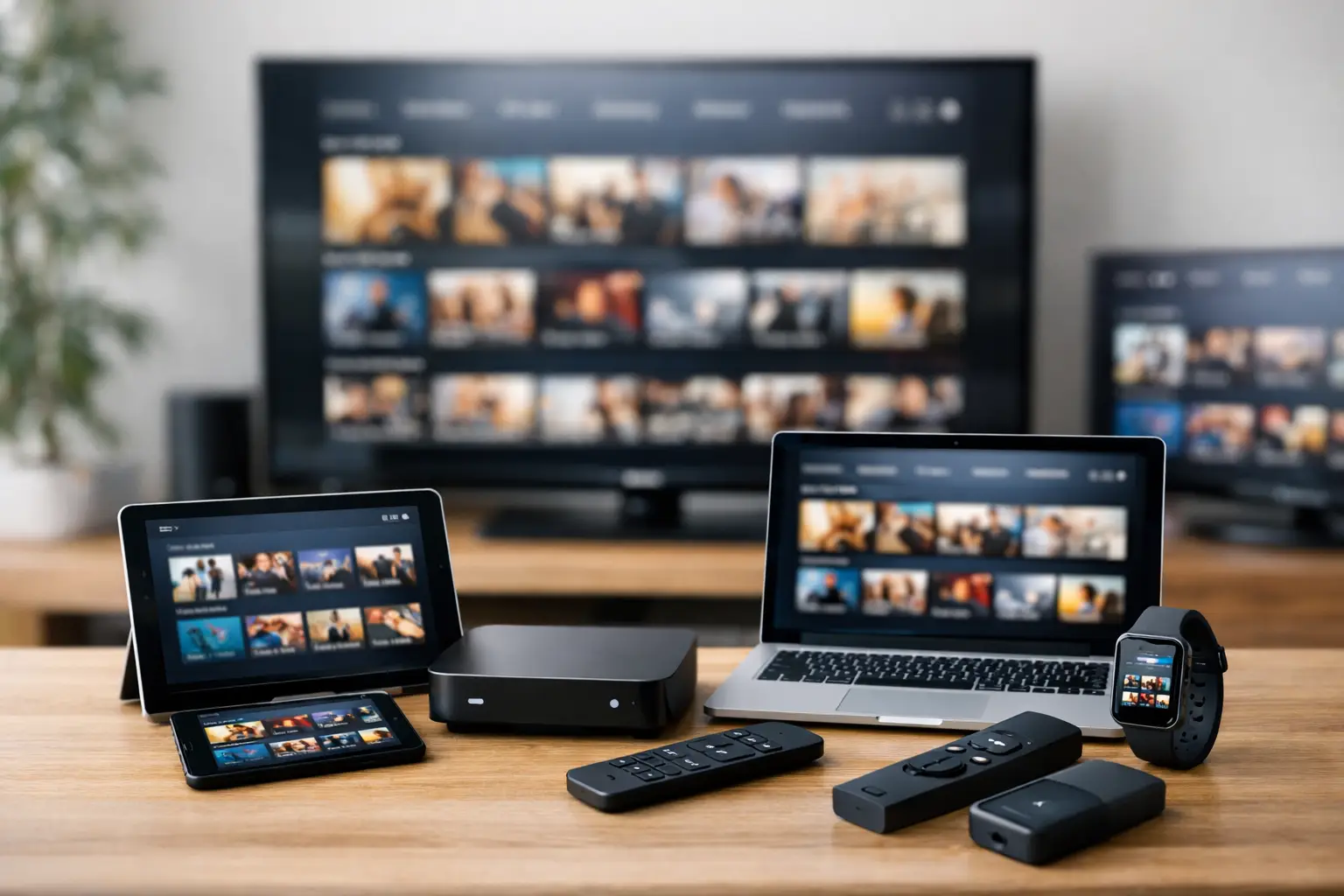
A subscription is only useful when it works on the screens your family already uses. This IPTV device compatibility guide explains how to choose the right setup for live Russian-language TV, channel archives, movies, series, kids’ content, and sports without turning installation into a technical project.
For most households, the best answer is not one device. A Smart TV may be ideal for the living room, while a phone or tablet is more practical in the kitchen, bedroom, or while traveling. The key is to understand which apps, players, and connection methods your device supports before you begin.
What IPTV Compatibility Actually Means
IPTV compatibility is more than whether a device can connect to the internet. Your device must also support a way to open the service: a dedicated app, a browser, or an IPTV player that accepts an m3u or m3u8 playlist. It also needs enough processing power and a stable connection to play HD, Full HD, or 4K channels comfortably.
Many newer devices can play IPTV, but the setup can look different from one platform to another. An Android TV box may let you install a player directly. A computer can use a web browser or VLC. A Smart TV may require an app from its app store, depending on the TV brand, model year, and regional settings.
Compatibility also depends on the content format. Standard channels place less demand on your network than high-resolution programming. If several people are watching on different devices at the same time, your home internet connection and Wi-Fi coverage matter just as much as the screen itself.
IPTV Device Compatibility Guide by Device Type
Smart TVs
A Smart TV gives your household the most familiar viewing experience. You use one remote, watch on the largest screen, and do not need to connect a laptop or phone each time. This is often the preferred option for families who want live channels, archived programs, and on-demand films available in the main room.
Samsung, LG, Android TV, Google TV, and other Smart TV platforms do not all use the same app stores or support the same applications. Before selecting a player, check your TV’s operating system, not just the brand name printed on the screen. Two TVs from the same manufacturer can have different compatibility depending on their year and software version.
If your Smart TV does not support the player you want, a separate streaming box can be the simpler solution. This avoids replacing a television that still has a good picture and gives you more flexibility with apps and updates.
Android TV and Streaming Boxes
Android-based TV boxes are a practical choice for IPTV because they commonly support a wide range of player apps. They are especially useful when an older Smart TV has limited app support or when you want a more responsive interface for a large channel selection.
Look for a box with current software, reliable Wi-Fi, and enough storage to install the apps you need. A wired Ethernet connection is even better when the box is close to your router. It can reduce buffering during busy evening hours and provide more consistent playback for HD and 4K channels.
Set-top boxes are also convenient for users who prefer a dedicated television device instead of screen casting from a phone. Once the player is configured, opening your channels can be as simple as switching on the TV and selecting one app.
Amazon Fire TV Devices
Fire TV sticks and Fire TV televisions can be a compact, affordable option for a second room, guest room, or travel setup. Their small size makes them easy to move between televisions, and they work well for viewers who want a simple remote-control experience.
App availability can vary by device generation and account region. Confirm that your preferred IPTV player is supported on your specific Fire TV device before purchasing it solely for IPTV. Also remember that smaller streaming sticks rely heavily on strong Wi-Fi, so placement behind a wall-mounted TV can sometimes weaken the signal.
iPhone, iPad, and Android Phones or Tablets
Mobile devices are ideal when television needs to fit around real life. You can follow the news while cooking, keep children entertained on a trip, or watch an archived program after the main TV is occupied. A tablet offers a larger screen than a phone and is often a comfortable option for movies and series.
Android and iOS use different app stores, so a player available on one platform may not be available on the other. Choose an app designed for your device, then add your subscription details or playlist exactly as provided. Typing a long address manually can lead to errors, so use copy and paste whenever possible.
Mobile viewing also requires attention to data use. Watching over Wi-Fi is usually best, particularly for high-definition programming. If you use cellular data, check your mobile plan and consider choosing a lower stream quality when you are away from home.
Windows and Mac Computers
A computer remains one of the most flexible ways to watch IPTV. It is useful for people working from home, students, and viewers who want to watch from a desk without adding another device. Computers can often play streams through a browser or a compatible application such as VLC.
VLC is a familiar option for many users because it supports playlist-based playback. It is best for straightforward viewing, although its channel navigation may feel less TV-like than a dedicated IPTV app. If you want categories, favorites, TV guides, and easier switching between channels, a dedicated player may offer a better experience.
A computer connected to a television by HDMI can also serve as a living-room solution. This approach works, but it is less convenient for daily family viewing than a Smart TV app or set-top box because you must manage the computer each time.
Choosing the Right IPTV Player
An IPTV player is the app that displays your channel list and starts the stream. It is not the subscription itself. This distinction helps prevent a common setup mistake: installing a player but expecting it to include channels automatically.
Many subscribers use m3u8-compatible players, including VLC, OTT Navigator, and Televizo. The right choice depends on your device and how you watch. VLC is practical for computers and basic playback. OTT Navigator and Televizo can be more comfortable for users who want channel groups, favorites, and a television-style interface on supported devices.
When comparing player apps, focus on everyday features rather than technical labels. Check whether the app supports your device’s operating system, accepts an m3u or m3u8 playlist, provides an electronic program guide if needed, and makes it easy to manage favorites. A free player may be enough for one screen, while a paid version can be worthwhile if it removes limits or improves usability for the whole household.
Check These Details Before Setup
A few minutes of preparation can prevent most compatibility problems. Confirm these four points before adding a playlist:
- Your device’s operating system and software version support the app you plan to use.
- Your internet connection is stable enough for the picture quality you want, especially for HD, Full HD, and 4K streams.
- The app accepts the playlist format and login method included with your subscription.
- Your subscription allows the number of simultaneous streams your household expects to use.
For reliable home viewing, place the router in an open area rather than inside a cabinet or behind large metal objects. If the main television is far from the router, use Ethernet when possible or consider a mesh Wi-Fi system. A faster internet plan does not always solve buffering if the signal is weak at the TV.
Common Problems and Simple Fixes
If a playlist will not load, first check that the address was copied completely and that no extra spaces were added. If channels appear but do not play, restart the app and device, then test another channel. This helps determine whether the problem is a single stream, the app, or the internet connection.
When video buffers repeatedly, lower the stream quality if that option is available and test your connection on another device. A wired connection can make a noticeable difference for a fixed TV box. If only one app has trouble, update it or clear its cache according to the device settings.
If the picture plays but there is no sound, verify the TV or receiver audio output settings. Some devices need audio set to PCM or Stereo rather than a surround-sound format. For channels that are missing from a list, refresh the playlist inside the player before assuming the subscription has a problem.
Build a Setup That Fits Your Family
The most convenient IPTV setup is the one that matches how each person watches. Put a Smart TV or streaming box in the main room for easy remote-control viewing. Keep a phone or tablet ready for flexible personal viewing. Use a computer when you need a large workspace screen or a quick browser-based option.
Russia Plus TV is designed for this kind of multi-device household, with a broad selection of Russian-language channels and entertainment that can be watched through compatible TVs, boxes, mobile devices, computers, and m3u8-capable players. Start with the screen your family uses most, confirm the player works well there, and then add other devices as needed. That way, familiar television is available where it is most useful, not just where it is easiest to install.