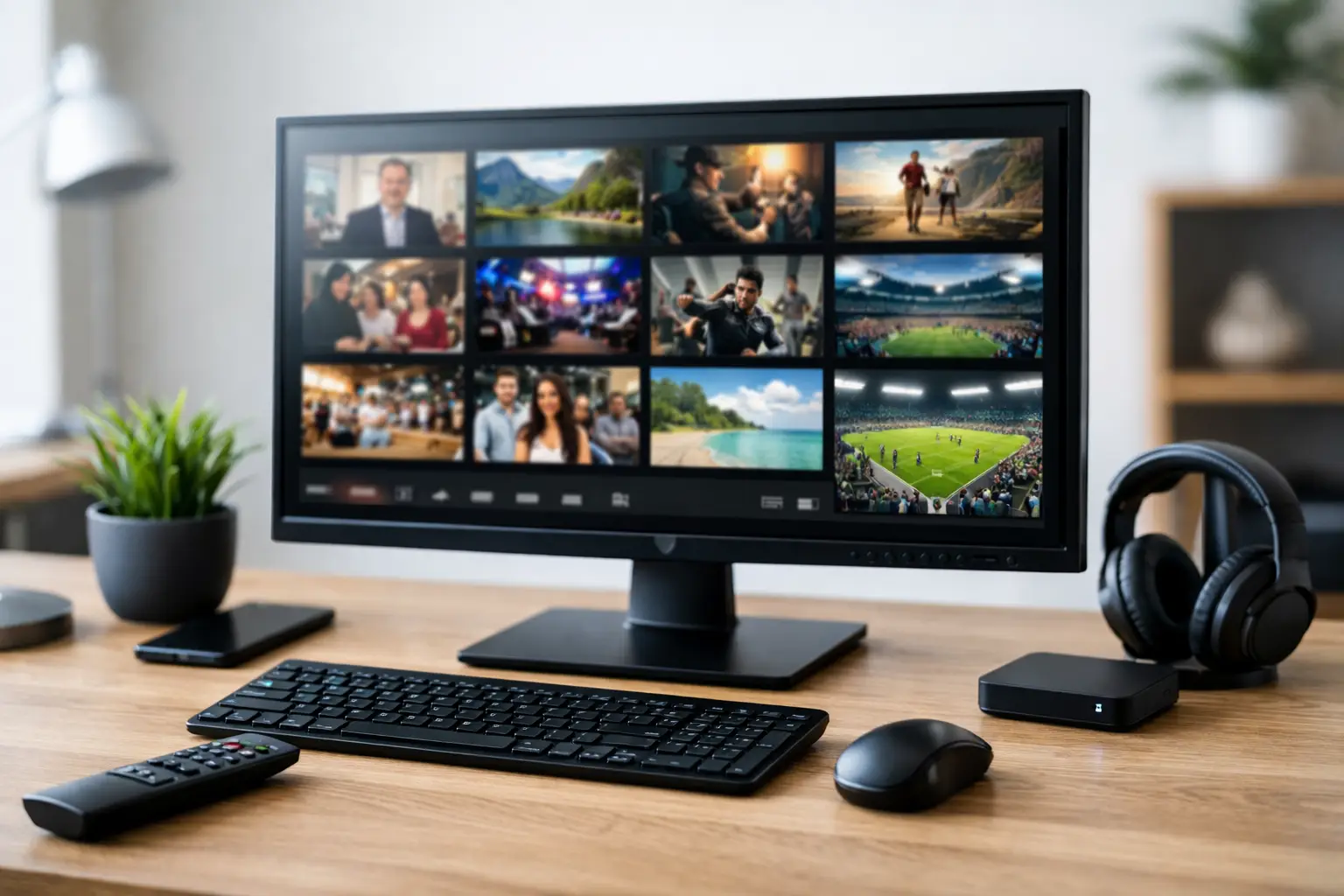
A computer can be one of the easiest ways to watch familiar Russian-language TV when you are away from home. With the right computer setup for IPTV viewing, you can enjoy live channels, movies, series, sports, cartoons, and archived programs on a larger screen without buying extra equipment.
For many households, the best approach is simple: use the computer you already own, connect it to a reliable internet connection, choose a compatible IPTV player, and adjust a few settings for comfortable viewing. Whether the computer stays on a desk or connects to the family TV, a few practical choices can make daily viewing much more enjoyable.
What You Need for a Computer Setup for IPTV Viewing
You do not need a high-end gaming computer to watch IPTV. Most recent Windows PCs, Macs, and laptops can play standard HD streams without difficulty. For Full HD and 4K content, a newer device and a stronger internet connection will provide better results, especially if other people in the home are streaming, gaming, or using video calls at the same time.
A practical starting point is a computer with at least 4 GB of RAM, an updated web browser or media player, and enough free storage for system updates. If you plan to connect the computer to a TV, make sure it has an HDMI port. Many newer laptops use USB-C instead, so you may need a USB-C-to-HDMI adapter.
Choose the Screen That Fits Your Viewing Habits
A laptop is convenient for watching in the kitchen, bedroom, office, or while traveling. A desktop computer may be a better choice for regular viewing in one location because it can stay connected to a larger monitor or television.
For a family living room setup, connecting a computer to the TV with an HDMI cable is often the simplest option. HDMI carries both picture and sound through one cable. Select the correct HDMI input on the TV, then use your computer display settings to choose whether you want to mirror the computer screen or use the TV as a second display.
Mirroring is easier when you want to see the same image on both screens. Using the TV as a second display can be more comfortable if you want to browse, check messages, or manage your IPTV player on the computer without putting those actions on the television.
Give Your Internet Connection Enough Room
Internet quality has a direct effect on IPTV picture stability. A basic SD channel needs relatively little bandwidth, but HD, Full HD, and 4K streams require more capacity. For dependable HD viewing, a connection of 10 Mbps or more per active stream is a reasonable target. For 4K programming, plan for more speed and leave extra capacity for other devices in the home.
Wi-Fi can work well when the computer is close to the router. If the image pauses, becomes blurry, or takes too long to start, try moving closer to the router or switching to a wired Ethernet connection. Ethernet is especially useful for a desktop computer or a laptop that stays near the TV.
It also helps to pause large downloads, cloud backups, and game updates while watching an important live broadcast. This is not always necessary, but it can prevent interruptions during high-demand evening hours.
Select a Compatible IPTV Player
IPTV subscriptions are typically watched through a browser, a dedicated application, or a player that supports an M3U or M3U8 playlist. The right option depends on how your service provides access and which features matter most to you.
A browser is convenient because there is nothing extra to install. It can be a good choice for occasional viewing or for users who prefer a straightforward sign-in process. Keep the browser updated, since old versions may have trouble with newer video formats or protected streaming features.
For more control, many viewers use an IPTV player. VLC is a familiar option for computer users who want to open a playlist or a stream directly. Other compatible players may offer channel groups, favorites, electronic program guides, and a more TV-like layout. The appearance and available functions vary by player, so it is worth trying the one that feels easiest for everyone in the household.
If you use Russia Plus TV, follow the access instructions provided with your subscription or purchased playlist. Enter account details only in the player or service area you trust, and keep your subscription information private.
Set Up Your Computer in a Few Practical Steps
Start by updating your operating system and media player. Updates often fix video playback issues, improve security, and add support for current streaming standards. Restart the computer after major updates before beginning your IPTV setup.
Next, install or open your chosen player. If your IPTV provider supplies a playlist URL, portal address, or account login, enter it exactly as provided. A single missing character can prevent channels from loading. If a playlist does not open, copy it again carefully rather than typing a long address by hand.
Once channels appear, take a moment to organize the experience. Add frequently watched channels to favorites, create groups if your player allows them, and test one live channel plus one on-demand title. This confirms that both live streaming and the content library are working as expected.
If your service includes channel archives or replay features, check how they are shown in your selected player. Some players place archived programs inside the program guide, while others use a separate catch-up or archive section. Knowing where this feature is located makes it easier to watch a missed news program, series episode, or children’s show on your own schedule.
Improve Picture, Sound, and Comfort
The default display settings on a computer are usually fine, but a television connection may need a quick adjustment. Set the display resolution to match the TV when possible, such as 1920 x 1080 for Full HD or 3840 x 2160 for a 4K television. A lower setting may make text and menus look soft, while a setting the computer cannot handle well may cause flickering or an unstable picture.
For sound, HDMI normally sends audio to the TV automatically. If you see a picture but hear no sound, open the computer sound settings and select the TV or HDMI output as the active device. When watching from a laptop, headphones can be useful late at night, while external speakers can improve dialogue and music in a larger room.
A wireless mouse and keyboard can make a computer connected to a TV much easier to use from the couch. If you prefer a more traditional remote-control feel, some media players support keyboard shortcuts for volume, full-screen viewing, channel changes, and playback controls. Keep the setup simple at first, then add accessories only if they solve a real everyday problem.
Fix Common IPTV Viewing Problems
When a channel buffers, first test another channel. If only one channel has an issue, the problem may be limited to that stream. If every channel buffers, check your connection by opening another internet service or restarting the router and computer.
If channels load but there is no picture, confirm that the player is updated and that the playlist or login information is still active. For a black screen on a TV, check the HDMI cable and verify that the television is set to the correct input. Disconnecting and reconnecting the cable can help the devices recognize each other again.
Audio delays can sometimes be corrected inside the player settings. Look for audio synchronization, audio delay, or playback settings. A small adjustment may bring voices and picture back into alignment. If the problem happens only on one channel, switching away and returning to it may also help.
Do not overlook the simplest fix: restart the player. Closing and reopening the application clears many temporary playback issues without changing your account or channel settings.
Make the Setup Work for the Whole Family
A shared computer IPTV setup should be easy for every family member to use. Put the player shortcut on the desktop, save favorite channels, and make sure the computer starts with the correct sound output when it is connected to the TV. These small steps reduce the need for repeated setup each time someone wants to watch.
For households with children, organize cartoons and family programming into favorites so they are easy to find. Adults can keep news, entertainment, films, and sports in their own groups. Archived broadcasts and on-demand content are particularly useful when different family members want to watch at different times.
A computer is not only a backup way to watch IPTV. Set up thoughtfully, it becomes a flexible home viewing center that can move from a desk to a TV screen and keep the channels your family enjoys within easy reach.