
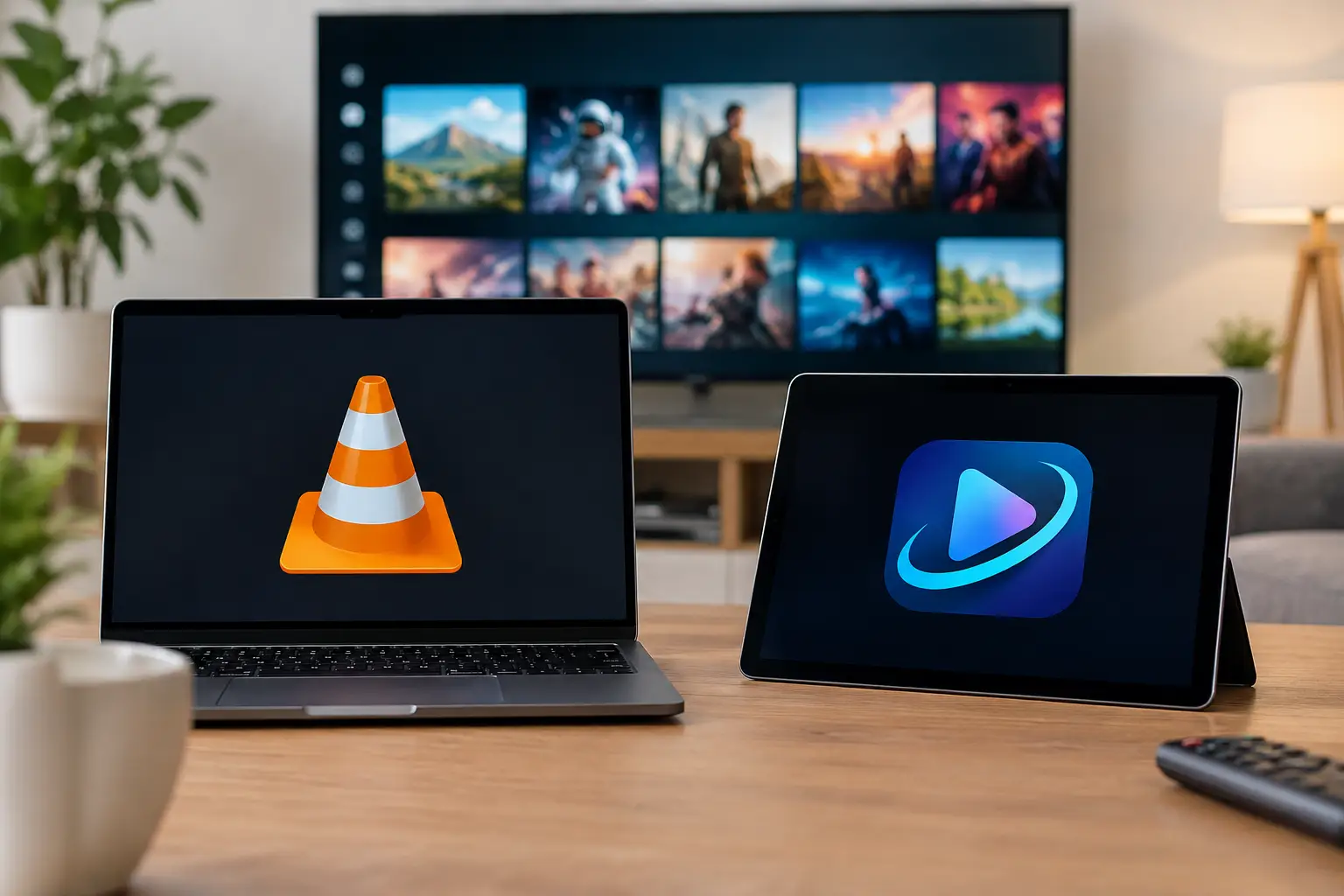
A playlist can open in seconds, yet the viewing experience can feel completely different depending on the player. In the VLC versus OTT Navigator choice, the best option is not necessarily the one with the most settings. It is the one that makes live channels, program schedules, favorites, and catch-up viewing simple for everyone in the household.
Both apps can work with compatible IPTV playlists, including m3u and m3u8 formats. The key difference is their purpose. VLC is a flexible media player that can play many types of video and audio files. OTT Navigator is built specifically around the way IPTV subscribers browse and watch television. That distinction matters when you have hundreds or thousands of channels available.
VLC Versus OTT Navigator: The Main Difference
VLC is familiar to many viewers because it is free, widely available, and dependable for opening a video stream. If you want to test an IPTV playlist on a computer or phone, it is often a practical place to start. Add the network playlist address, select a channel, and VLC begins playback when the stream is available.
OTT Navigator takes a more TV-focused approach. It organizes channels into categories, displays an electronic program guide when your service provides one, lets you create favorites, and can show archive or catch-up programs in a more natural television interface. Instead of treating IPTV as a long file list, it treats it as a full channel service.
For a viewer who mainly wants to confirm that a stream works, VLC is usually enough. For a family that watches news, films, children’s channels, sports, and recorded programs throughout the week, OTT Navigator is usually easier to live with.
When VLC Is the Better Choice
VLC is a sensible choice for straightforward playback, especially on a Windows or Mac computer. Its interface is simple, and many people already have it installed. You can open an IPTV playlist or individual stream without creating a complicated viewing profile first.
It is also useful as a troubleshooting tool. If a channel does not play in one app, trying it in VLC can help determine whether the issue is with the stream, the playlist details, the device, or the other app’s settings. This can save time before contacting support.
VLC works well when you want to watch one channel at a time and do not need a full TV guide. It can also be convenient for viewers who use a laptop at a desk, connect a computer to a television with HDMI, or occasionally watch on a mobile device.
The trade-off is navigation. A large IPTV subscription may include thousands of live channels plus movies and archived programming. Browsing that amount of content in a basic playlist view is not always comfortable. Finding the channel you watched yesterday, checking what starts next, or moving between categories can take more effort than it should.
VLC also is not available as a standard solution on every Smart TV platform. Compatibility depends on the television operating system and the app store available on that device. If your main screen is a TV or streaming box, check your device before choosing VLC as your everyday player.
VLC is a practical fit if you:
Use a computer most of the time, want a quick playlist test, prefer minimal controls, or only need direct live-stream playback. It is also a good backup player to keep available when diagnosing playback questions.
When OTT Navigator Is the Better Choice
OTT Navigator is designed for viewers who want their IPTV service to feel closer to regular cable or satellite television, while keeping the flexibility of streaming. It is especially popular on Android TV devices, Android phones and tablets, Fire TV devices, and compatible TV boxes.
After you add your provider’s playlist and any program guide details supplied with it, OTT Navigator can arrange channels by group. You may see separate sections for Russian channels, Ukrainian channels, news, entertainment, films, children’s programming, music, and sports, depending on the playlist structure. Favorites can place the channels your family uses most at the top.
The program guide is one of its biggest advantages. Rather than guessing what is on, you can browse current and upcoming shows. When archive access is included with your subscription and configured by the provider, OTT Navigator can make it easier to locate an earlier broadcast and start it from the guide. Archive availability still depends on the specific channel and service, so not every program will have the same replay window.
The app also offers more personalization. Different members of the household can use favorites, adjust channel order, hide groups they do not watch, and change display options. Those choices are helpful with a large channel package, because more content is valuable only when it remains easy to find.
The trade-off is setup. OTT Navigator has more options than VLC, which can feel less immediate for a first-time user. You will need to select the correct playlist type, enter the playlist address or portal details provided by your service, and allow the channel list and guide to load. Once it is configured, daily use is generally much simpler than the initial setup.
OTT Navigator is a practical fit if you:
Watch primarily on an Android-based TV or streaming device, want a guide and channel categories, use favorites often, or value a more familiar television-style interface. It is generally the stronger choice for regular household viewing.
Features That Depend on Your IPTV Service
Neither VLC nor OTT Navigator supplies channels on its own. A player is the app that displays the content; the IPTV subscription provides the playlist, live streams, guide data, archive access, and on-demand catalog. This is an important distinction when comparing apps.
For example, installing OTT Navigator will not automatically add a program guide or replay feature. The playlist and account from your provider must support those features. In the same way, VLC cannot create archive access if the channel does not offer it through the service.
With a compatible subscription such as Russia Plus TV, the player you choose can be the front door to a large Russian-language channel lineup and entertainment library. The right player helps you use that access comfortably on the device you already own.
Playback quality also relies on your internet connection, home Wi-Fi, device performance, and the stream itself. If video pauses or buffers, test another channel and try a wired connection for TV boxes when possible. Closing unused apps, restarting the device, and confirming that the playlist information is current can also resolve common issues.
Setup Expectations for Each Player
With VLC, setup is usually short. Open the app, choose the option to open a network stream or network location, paste the playlist address provided with your IPTV subscription, and start playback. On some devices, you may first download or open the playlist as a file. The exact menu names vary by platform.
With OTT Navigator, begin by adding a new provider or playlist. Enter the m3u playlist address, portal information, or login details supplied by your IPTV service. Let the app load channels, then check whether the guide has populated. If your subscription includes archives, verify that the correct time zone is selected so program times appear accurately.
Do not share your playlist address or account credentials outside your household. Treat them like a streaming password. If you replace a device, remove saved account information from the old device before giving it away or selling it.
Which Player Should You Choose?
Choose VLC if your priority is uncomplicated playback on a computer or a quick way to test a stream. It is lightweight, familiar, and useful when you do not need a guide-driven TV experience.
Choose OTT Navigator if IPTV is part of your regular home entertainment routine. Its categories, favorites, program guide, and archive-friendly layout make a broad channel selection easier to enjoy, especially from the couch with a remote control.
Many subscribers use both. OTT Navigator becomes the everyday app on a TV box or Android TV device, while VLC remains available on a computer for occasional viewing or troubleshooting. Start with the screen your family uses most, then choose the player that makes familiar channels and favorite programs easiest to reach.