
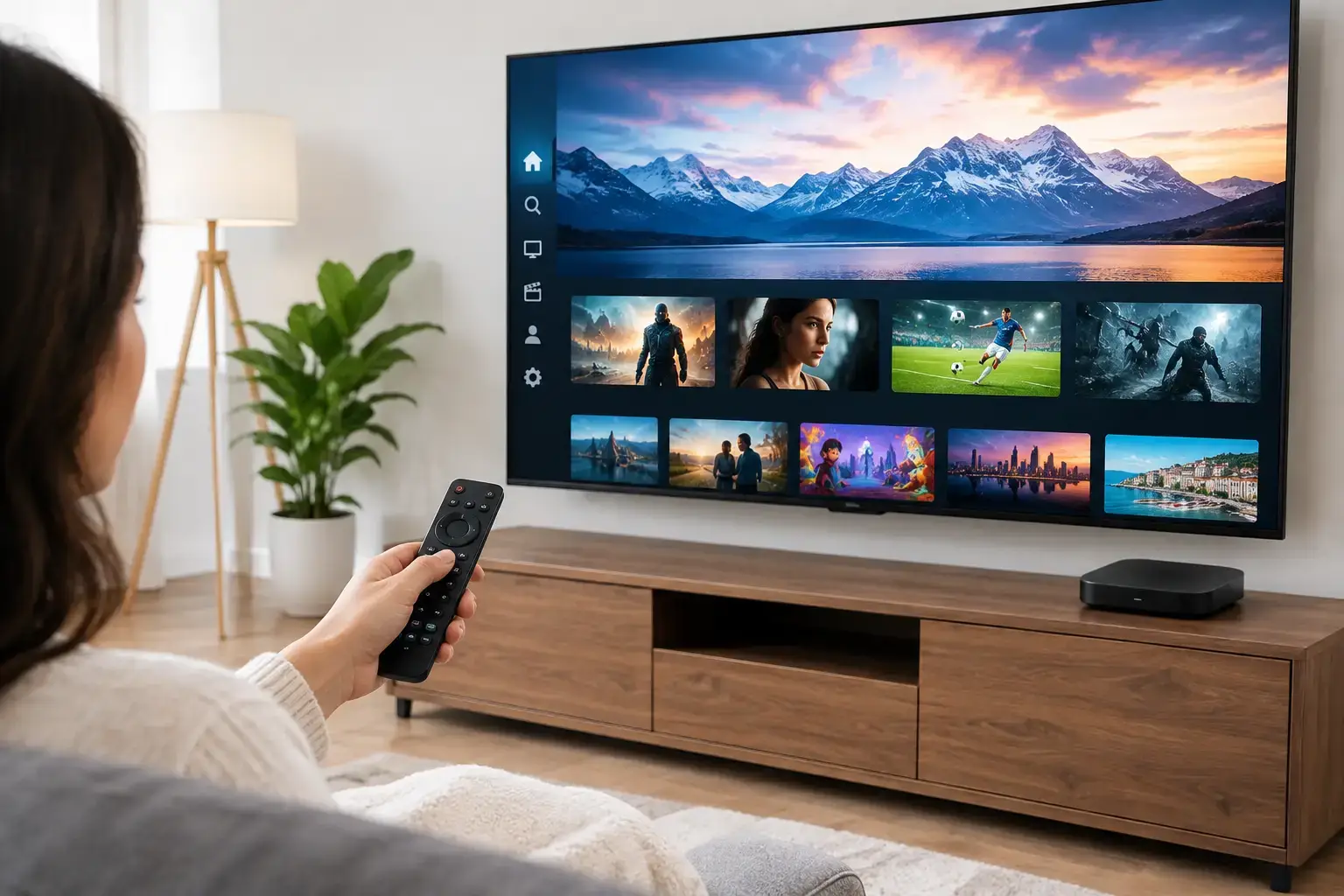
An LG Smart TV can become the main screen for your favorite Russian-language channels, movies, series, and children’s programs without adding a cable package. To connect IPTV to LG television, you need a stable internet connection, an active IPTV subscription or playlist, and a compatible player. Most households can complete the setup in a few minutes directly through LG webOS.
The best method depends on your LG model and how you received your IPTV access. If your provider supports a webOS app, that is usually the most convenient option. If you have an M3U playlist and login details, a compatible IPTV player can load the channels instead. An external TV box is another good choice when you want more app options or have an older LG television.
What You Need Before You Start
First, connect the TV to your home network. Wi-Fi works well for standard HD viewing when the signal is strong, but a wired Ethernet connection is often the better choice for 4K channels or a busy household with several devices online at once.
Have your IPTV details ready before opening an app. Depending on the service, this may be an M3U playlist URL, a username and password, an Xtream Codes login, or a device activation code. Do not type these details from memory if you can avoid it. A single missing character in a playlist address can prevent channels from loading.
Make sure your LG TV has current software as well. Press the Settings button on the remote, open All Settings, then go to Support and Software Update. Updates can improve app compatibility and help prevent playback issues.
Connect IPTV to LG Television With a webOS App
For most newer LG Smart TVs, installing an IPTV player from the LG Content Store is the simplest route. App availability can vary by TV model, webOS version, and country or region, so the exact player you see may be different from one household to another.
Install a compatible IPTV player
From the LG home screen, open the LG Content Store and use Search to look for an IPTV player available for your television. Choose a player that supports the access format supplied by your provider, such as M3U playlists or Xtream Codes. Read the app description before installing it, because some players support only one method.
Select Install, then open the player when the download is complete. Many IPTV apps show a setup screen immediately. Others display a QR code, a MAC address, or a device ID that you use to activate the app from a phone or computer.
Add your playlist or account details
Inside the player, select the option to add a playlist, portal, or account. Paste the M3U link exactly as it was provided, or enter your server address, username, and password where requested. Give the playlist a clear name, such as “Family TV” or “Russian Channels,” if the app allows it.
After you save the details, wait for the channel list to load. A large package with live channels, catch-up programming, and video on demand can take a little longer on the first launch. Once loaded, you should see channel categories, a program guide, and available archive or replay options.
Russia Plus TV provides broad access to Russian, Ukrainian, and regional programming, including live channels, films, series, cartoons, and archived broadcasts. The right player lets you enjoy that variety on the larger screen your family already uses.
Use an M3U Playlist Carefully
An M3U playlist is a file or web address that tells an IPTV player where to find your channel streams. It is a common and flexible setup method, especially when you want to use the same subscription across a Smart TV, phone, tablet, computer, and compatible streaming device.
When entering an M3U URL on an LG TV, use the app’s QR-code setup option if it offers one. Typing a long address with a remote is slow and increases the chance of errors. With a QR code, you can open the activation page on your phone and paste the playlist securely.
Keep your playlist credentials private. Do not post a playlist URL in a chat group or share it outside your household. Many IPTV subscriptions have a set number of simultaneous connections, and unauthorized use can cause interruptions when you are trying to watch.
When an External TV Box Is the Better Option
Not every LG television supports every IPTV player. Older Smart TV models may have limited app availability, and certain webOS players may not support the login format your provider uses. In those situations, an Android TV box or another compatible set-top box can be the easiest solution.
Connect the box to an HDMI port on your LG TV, switch the TV input to that HDMI source, and install a player that accepts your playlist or account details. The TV then works as the display, while the box handles the IPTV app. This method can also be useful if you want a faster interface, more storage, or additional player choices.
The trade-off is one more device, remote, and power cable. For many viewers, though, it is worthwhile when they want maximum flexibility or plan to use multiple streaming apps alongside IPTV.
Make IPTV Look and Work Better on Your LG TV
Once your channels are playing, take a few minutes to adjust the viewing experience. In the IPTV player, mark frequently watched channels as favorites so news, sports, movies, and kids’ content are easier to find. If an electronic program guide is available, allow it to update fully. The guide makes it much easier to see what is on now and what is available later.
For picture settings, LG’s Standard or Filmmaker-style modes can give movies and series a more natural image, while Sports mode may look brighter and more vivid for live events. Preferences differ, so test a familiar channel rather than changing every setting at once.
If your subscription includes channel archives, check how replay works in your specific app. Some players show a clock icon beside supported programs, while others place archives in a separate menu. Archive access is especially helpful for US viewers watching Russian channels across time zones. You can start a program after work instead of planning your evening around its original broadcast time.
Fix Common LG IPTV Problems
If the app opens but channels buffer frequently, test another device on the same network. If that device is also slow, restart your router and, if possible, move the TV closer to the Wi-Fi router or use Ethernet. A 5 GHz Wi-Fi connection generally performs better than 2.4 GHz when the TV is nearby, although walls and distance can affect the result.
If a playlist does not load at all, double-check the URL, username, password, and capitalization. Expired subscriptions and copied spaces at the beginning or end of a link are common causes. Restarting the app and television can also clear a temporary issue.
When only one channel fails, the problem may be with that channel’s source rather than your LG TV. Try a few other channels first. If the entire service is unavailable after verifying your internet connection and account details, contact your IPTV provider’s support team with the app name, LG model, and a short description of what appears on screen.
For the best results, use IPTV services that are authorized to provide the content they offer. This protects your account and gives you a clear path to support when setup or playback needs attention.
A few minutes spent choosing the right player and entering your details carefully can turn your LG television into a dependable home screen for familiar language, live programming, and entertainment for every member of the family.