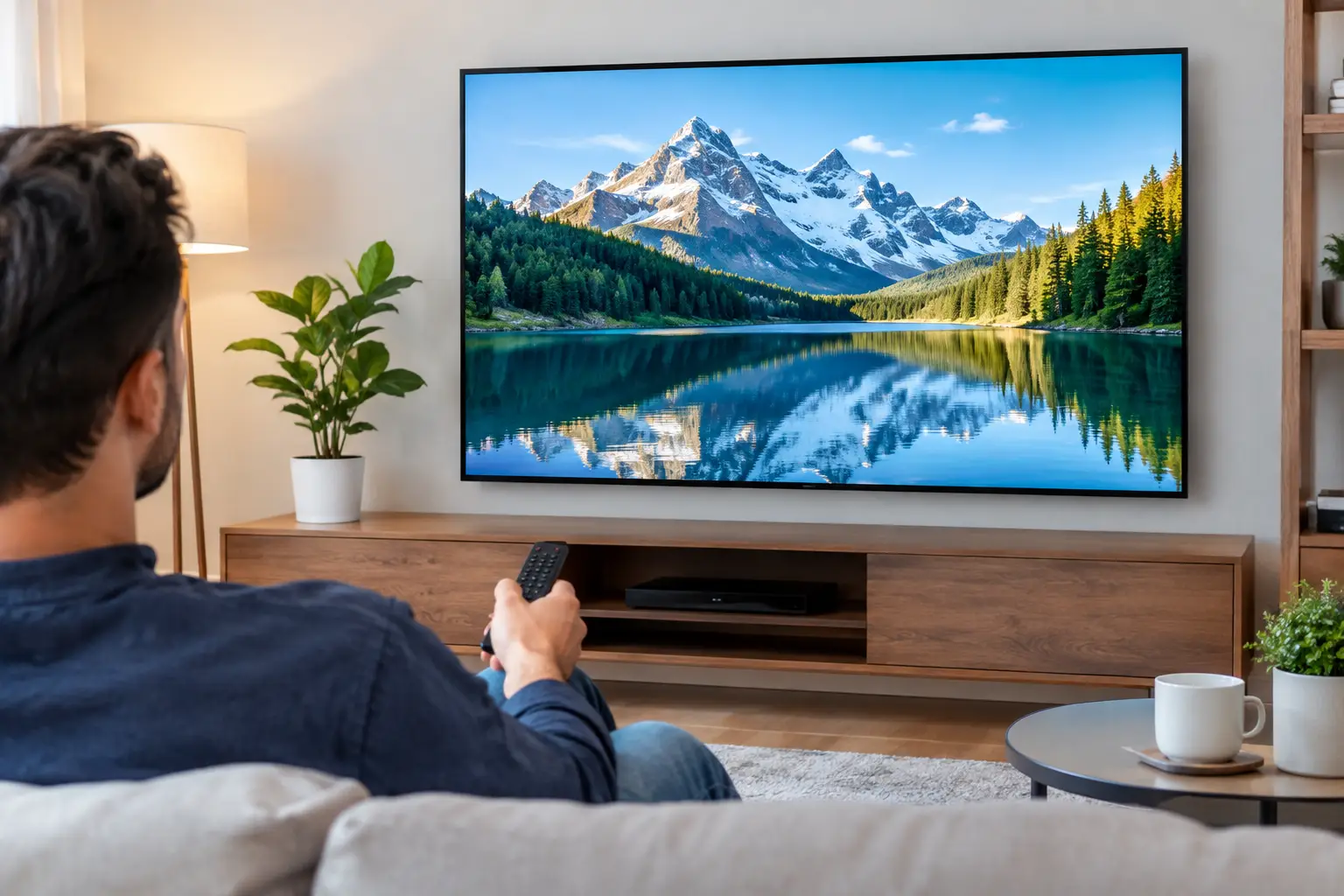
A favorite live channel can look disappointing for several different reasons: the image may be soft, motion may break into blocks, colors may look wrong, or the stream may pause during a program. Knowing how to improve IPTV picture starts with separating a picture-quality issue from an internet or device issue. A few targeted adjustments usually make a much bigger difference than repeatedly restarting the app.
For households watching Russian-language channels, films, children’s programs, and sports on a large TV, the goal is simple: a stable stream that looks as clear as the channel source allows. The best result depends on the original broadcast quality, your connection, the app or player, and the screen settings. A 4K television cannot turn a low-resolution channel into true 4K, but it can display a good HD or Full HD stream very well when the setup is right.
Start With the Type of Picture Problem
Before changing settings, watch the same channel for a few minutes and identify what is actually happening. If the video freezes or shows spinning loading symbols, the issue is usually network stability. If the image stays smooth but looks fuzzy, the channel resolution, player setting, or TV processing may be the cause. If faces look natural but sports or fast action becomes blocky, your connection may be dropping data during busy moments.
Try another channel with a known HD or Full HD feed. If one channel looks poor while others look clear, the source feed may simply be lower quality. This is normal with some older channels, archive recordings, and original broadcasts. If every channel has the same problem, focus on your home setup.
How to Improve IPTV Picture With a Stable Connection
IPTV needs a consistent connection more than an impressive maximum speed. A speed test may look excellent while Wi-Fi interference or network congestion causes brief drops that create buffering and pixelation.
For the most reliable viewing on a Smart TV or TV box, connect the device to your router with an Ethernet cable. A wired connection is especially helpful for Full HD, 4K programming, live sports, and homes where several people stream, game, or make video calls at the same time. It also removes common Wi-Fi problems caused by walls, distance, and nearby electronics.
If Ethernet is not practical, use the 5 GHz Wi-Fi band when your router and device support it. Keep the router in an open, central location instead of inside a cabinet or behind the television. A mesh Wi-Fi system can help in a larger home, but placing a mesh point too far from the main router can still produce an unstable signal.
As a general guide, allow at least 10 Mbps of stable bandwidth for HD viewing, 25 Mbps for Full HD, and 50 Mbps or more for 4K. These are practical household targets, not guarantees. If several devices are online, you need additional capacity beyond the stream itself.
Reduce Competition on Your Network
A busy home network can affect live TV even when your internet plan is fast. Pause large downloads, cloud backups, console updates, and other high-bandwidth activity while troubleshooting. If picture problems appear only in the evening, the issue may be local network crowding or internet-provider congestion rather than your television.
Restarting the modem and router can clear a temporary issue. Unplug both for about 30 seconds, power on the modem first, wait until it reconnects, then restart the router. After that, restart the IPTV device and test the channel again.
Check the Stream and Player Settings
Many IPTV apps and m3u8-compatible players offer playback settings that affect image quality and stability. Look for options such as stream quality, hardware decoding, buffer size, adaptive playback, or video renderer. The names vary by app, so change one setting at a time and test it on the same channel.
Hardware decoding is often the best choice on newer Smart TVs, streaming sticks, and Android TV boxes because it uses the device’s video processor. If you see green screens, stuttering, or unusual color problems after enabling it, switch back to software decoding and compare. Older devices may handle one method better than the other.
Increasing the buffer can reduce interruptions on an inconsistent connection, but there is a trade-off. A larger buffer means the app stores more video before playing it, so changing channels or returning to live TV may take longer. It helps with occasional buffering but will not fix a weak Wi-Fi signal or a device that cannot process the stream properly.
When an app lets you select a stream version, choose the highest quality your connection and device can reliably support. If 4K pauses but Full HD plays smoothly, Full HD is the better viewing choice. A stable, sharp Full HD picture is more enjoyable than a higher-resolution stream that freezes every few minutes.
Russia Plus TV can be watched through compatible Smart TVs, TV boxes, phones, tablets, computers, and supported third-party players. If the picture looks poor on only one device, sign in or load the playlist on another compatible device for a quick comparison. This can show whether the problem is with the television, player, or home network.
Adjust Your TV for a Cleaner Image
Televisions often arrive with picture modes designed to look bright under store lighting. At home, those settings can make IPTV channels look overly sharp, unnatural, or noisy. Open the TV picture menu and start with Movie, Cinema, Filmmaker, or Standard mode. The best name depends on your TV brand, but these modes usually provide more accurate color and less artificial processing than Vivid or Dynamic mode.
Turn sharpness down rather than up. High sharpness does not create real detail. It often adds bright outlines around text, faces, and channel logos, making a compressed stream look worse. On many TVs, a low or middle sharpness setting produces the clearest result.
Motion smoothing is another setting worth testing. It can make sports appear smoother, but it may create odd movement around people, subtitles, or fast camera pans. For movies and drama, many viewers prefer it off or set to low. For sports, a low setting may be useful if it does not introduce visible artifacts.
Avoid aggressive noise reduction, digital clean view, and similar filters when watching a decent HD channel. These tools can soften fine details and make text less defined. They may help with an old, low-quality broadcast, so use them only when the source actually needs them.
Confirm HDMI and Screen Resolution
If you use a separate set-top box, streaming device, or computer, confirm that its output resolution matches what your television can display. A modern 4K TV usually works well with Auto resolution or 2160p output. For a 1080p television, use 1080p. Incorrect settings can lead to soft scaling, black borders, or an image that does not fill the screen properly.
Use a reliable HDMI cable, particularly for 4K content. An older or damaged cable may cause flickering, signal dropouts, or the device to fall back to a lower resolution. Also check the TV’s HDMI input settings. Some models require an enhanced HDMI or UHD color option to accept the full signal from a 4K device.
Keep the Device Ready for Streaming
A television or TV box with almost no free storage can become slow and unstable. Delete apps you no longer use, clear the IPTV app cache if that option is available, and install system and app updates. Updates can improve video decoding, compatibility, and playback stability.
Close background apps on Android TV boxes, phones, tablets, and computers. On a computer, browser tabs, video calls, and downloads can compete for memory and bandwidth. If you watch through a browser, test a current version of another browser before assuming the stream is at fault.
Older hardware has limits. A first-generation streaming stick or basic TV processor may struggle with high-bitrate Full HD or 4K video even with excellent internet. In that case, lowering the stream quality or using a newer compatible TV box can be more effective than changing router settings.
When a VPN May Affect Picture Quality
A VPN can be useful for privacy or network access in some situations, but it can also reduce speed and add delay. If you use one and see buffering, test playback with it turned off when appropriate for your setup. If the picture improves immediately, choose a closer server location or use a faster connection before turning it back on.
Do not change multiple variables at once. Test one channel, make one adjustment, and watch long enough to see a real result. That approach avoids confusion and helps you keep the settings that genuinely improve your viewing experience.
A clear IPTV picture comes from a reliable chain: a quality source, stable internet, capable device, sensible player settings, and a TV adjusted for real home viewing. Once that chain is working, the familiar channels, films, and family programming on your screen can look as good as your equipment was built to deliver.