
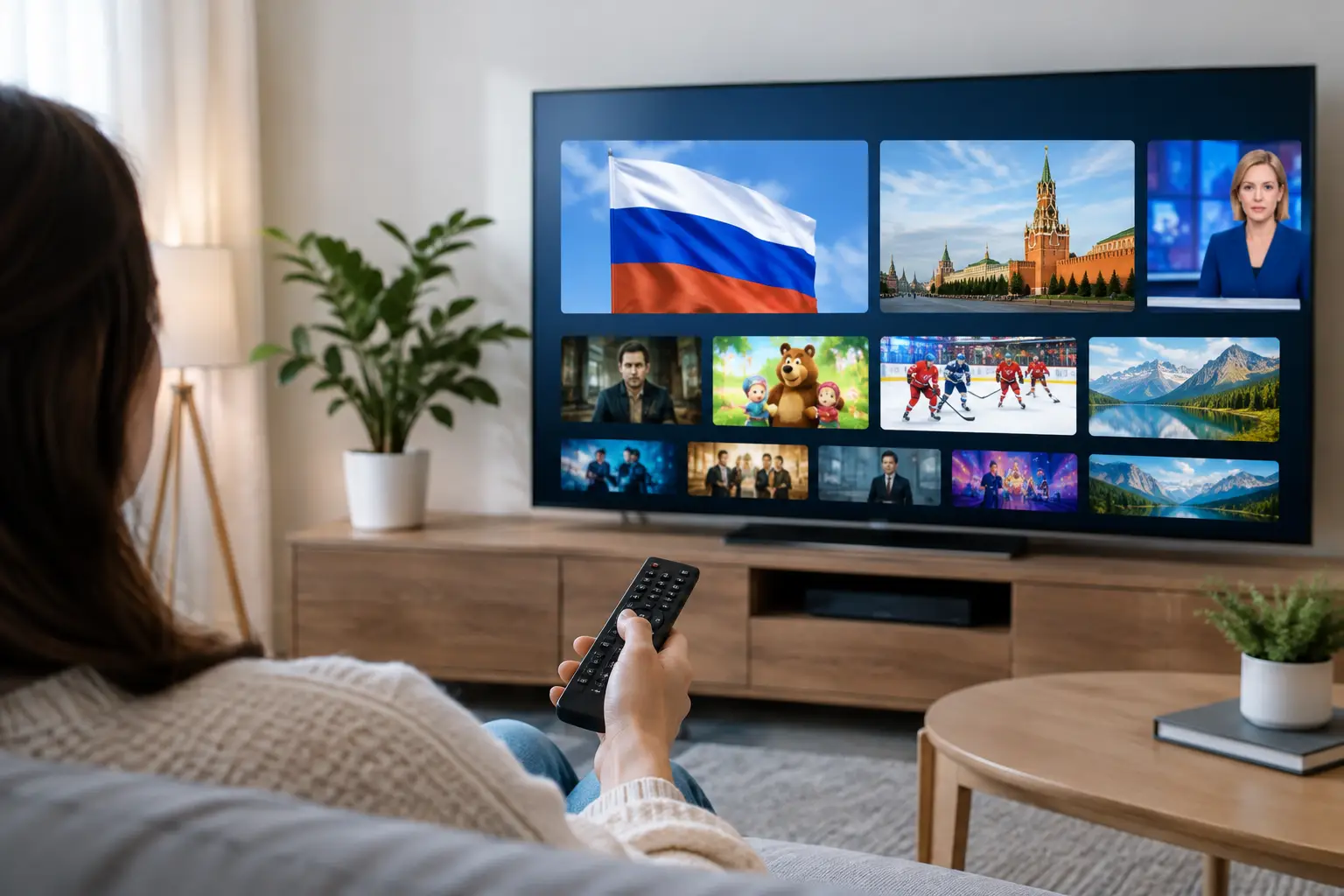
A familiar news broadcast, a children’s cartoon in Russian, or a live sports match can make a home abroad feel more connected. OTT Navigator Russian channels give viewers a practical way to organize a subscription playlist and watch Russian-language television on the devices they already use. The app is flexible, but the first setup matters: OTT Navigator is a player, not a channel provider. You need an active IPTV subscription and the playlist details supplied by your service.
For Russian-speaking households in the US, that distinction keeps setup simple. Choose a reliable provider with the channels, archive access, and device support your family needs, then add the authorized playlist to OTT Navigator. From there, the app can become a convenient daily TV screen with favorites, categories, program information, and playback controls in one place.
What OTT Navigator Does for Russian Channels
OTT Navigator is an IPTV player used on many Android-based devices, including Android TV, TV boxes, phones, and tablets. It reads a playlist from your provider and presents the available live channels and video content in a TV-friendly interface. Depending on the plan and device, it can also display a program guide, create channel groups, manage favorites, and support catch-up or archive viewing when those features are included with the subscription.
The player does not create a catalog on its own. If a channel is missing, a stream will not load, or archive programming is unavailable, the cause may be the subscription settings rather than the app. This is why it helps to begin with a service that clearly explains its playlist delivery, supported devices, channel access, and customer support process.
A broad Russian-language package can serve different people under one roof. One viewer may want federal news and talk shows, another may prefer movies and series, while children need cartoons and family programming. With channel groups and favorites, OTT Navigator makes that large selection easier to use without scrolling through hundreds of entries every evening.
Before You Set Up OTT Navigator Russian Channels
Have three things ready before installing the app: a compatible device, a stable internet connection, and your provider’s authorized playlist credentials. These details may come as an M3U or M3U8 playlist address, a portal address, or a login and password. Use the format provided by your IPTV service rather than trying random setup methods.
Internet quality matters most during live events and high-resolution viewing. Standard channels generally need less bandwidth than HD, Full HD, or 4K streams. If video pauses or changes quality frequently, test the connection on the same device. A wired Ethernet connection is often the best choice for a TV box or Smart TV setup, while a strong home Wi-Fi signal can work well for phones and tablets.
It is also worth deciding where your household will watch most often. Android TV and TV boxes offer the most natural living-room experience with a remote. A phone or tablet is useful for travel, the kitchen, or a second room. Some families use both, but check how many simultaneous connections are included with the subscription before streaming on multiple screens at once.
How to Add Your Playlist
The exact menu labels can vary slightly by app version and device, but the basic process is straightforward. Install OTT Navigator from the app store available on your compatible device, then open it and select the option to add a provider or playlist.
Choose the playlist type that matches the information you received. If your provider sent a playlist URL, enter or paste it carefully. If you received portal or account credentials, select the corresponding sign-in method and enter each field exactly as provided. Avoid adding extra spaces before or after a URL or password, as a single character can prevent the playlist from loading.
Once the playlist is added, allow the app time to retrieve channels, groups, logos, and program data. Large packages can take a little longer during the first load. When the channel list appears, play one live channel to confirm that the connection works. Then open a second channel from another category. Testing more than one stream helps confirm that the playlist loaded completely.
If your subscription includes a program guide, it may populate shortly after the playlist. Guide information is especially useful for finding Russian news, weekly shows, sports, concerts, and children’s programs without searching through every channel manually.
Make the Channel List Easier to Use
A package with thousands of channels is valuable only when everyone can find what they want. Start by creating a favorites group for the channels your household watches most. Add the main news channels, movie channels, children’s programming, sports, and regional content you return to regularly.
Next, browse the existing categories. Many providers organize playlists by country, language, genre, or video quality. Keep HD or 4K options for the devices and connections that can handle them comfortably. If an HD stream buffers on a phone using mobile data, a standard-quality version may provide a better viewing experience.
For families, separate favorites can reduce confusion. A parent’s list might focus on news and series, while a child-friendly section can keep cartoons and educational programming close at hand. This small amount of organization saves time every day.
Use Replay and Archive Features When Available
Live television is useful, but time-shifted viewing is often the feature families appreciate most. A channel archive lets you watch an earlier broadcast after it has aired, subject to the availability period included by your provider. That means you do not have to plan your evening around a specific program time in another time zone.
In OTT Navigator, archive access usually begins in the program guide. Select a past program on a supported channel and choose playback. The available controls depend on the provider and stream, but you may be able to start from the beginning, pause, or move through the program. Not every channel includes replay, and archive duration can differ by channel, so treat it as a subscription feature rather than an automatic function of the app.
This is particularly helpful for US viewers watching programming scheduled around Moscow or other regional time zones. News, entertainment shows, and children’s content can fit your household schedule instead of the original broadcast schedule.
Common Problems and Simple Fixes
When OTT Navigator Russian channels do not load, start with the basics. Confirm that the device is connected to the internet, then close and reopen the app. If only one channel fails, try another channel first. The issue may be limited to a particular stream rather than the full playlist.
If no channels appear, recheck the playlist address or account details. Do not share those credentials publicly or copy them from an outdated message. A subscription may also have expired, reached its allowed connection limit, or require a refreshed playlist from the provider.
If video buffers, restart the router and test a lower-resolution channel. Move closer to the Wi-Fi router or use Ethernet where possible. On older TV boxes, closing unused apps can free resources for smoother playback. When the app itself needs attention, check for updates through the appropriate app store.
For account or playlist issues, provider support is usually the right next step. Share the device type, the app version if available, and a clear description of what you see on screen. This gives support staff the information needed to help without unnecessary back-and-forth.
Choosing a Subscription That Fits Your Household
The best IPTV plan is not simply the one with the biggest number of channels. Look for a selection that matches how your family actually watches: Russian-language live TV, movies, series, cartoons, documentaries, concerts, and sports. Archive access can be just as valuable as live channels, especially for viewers balancing work, school, and different time zones.
Device compatibility should also be clear. A service that works with OTT Navigator, other M3U8-compatible players, mobile apps, Smart TVs, computers, and TV boxes gives you more freedom to watch where it makes sense. Russia Plus TV is designed around that flexibility, with a large Russian-language channel selection, on-demand entertainment, and viewing options for multiple everyday devices.
Before paying, verify the monthly price, the number of screens allowed, the setup information provided, and the availability of support. A low-cost plan is a better value when it is easy to activate, easy to manage, and dependable during the programs your household cares about.
Set up your favorites once, keep your playlist details secure, and let your TV schedule work around your family instead of the other way around.