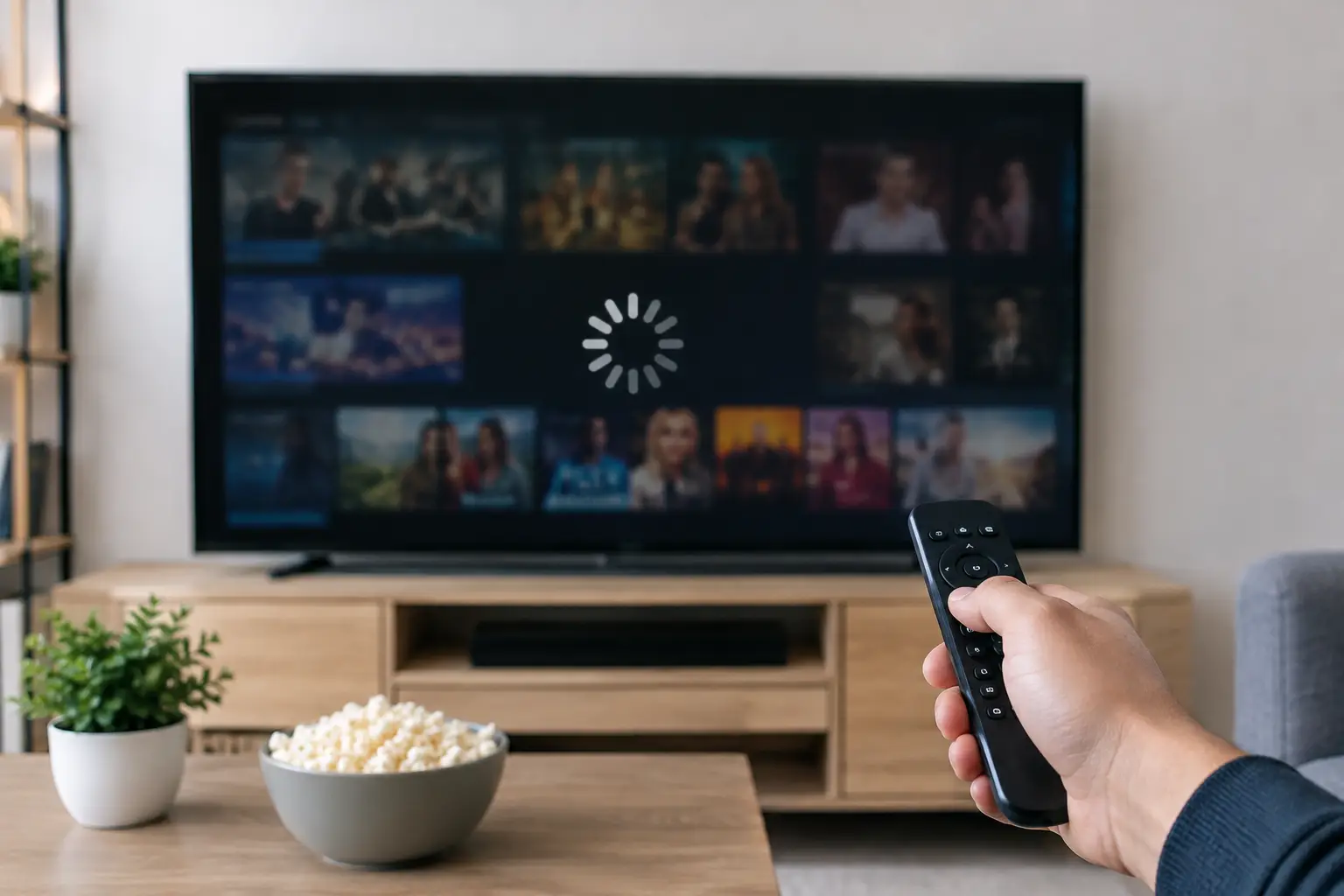
A live channel freezes just as the news begins, a movie drops to a spinning circle, or the picture becomes blurry during a big game. These problems are frustrating, but they are often fixable at home. Learning how to reduce IPTV buffering starts with identifying where the delay is happening: your internet connection, your Wi-Fi signal, the streaming device, or the app itself.
For Russian-speaking families watching live TV, archived programs, films, and children’s content, reliable playback matters. The good news is that you do not need to be a network specialist to make a noticeable improvement.
Start With Your Internet Speed and Stability
IPTV does not only need internet speed. It also needs a stable connection that can deliver data consistently. A speed test may show a high download result while your stream still buffers because the connection is fluctuating, the router is overloaded, or other devices are using bandwidth at the same time.
For one HD stream, a dependable connection of 10 Mbps or more is usually a reasonable starting point. Full HD and 4K programming need more capacity, especially if other family members are video calling, gaming, downloading files, or watching on additional screens. If your household watches several streams at once, choose an internet plan that gives you room beyond the minimum.
Run a speed test near the device that has the problem, not only next to the router. If the result is much lower in the living room or bedroom than it is in the same room as the router, Wi-Fi coverage is likely the issue.
Check for Busy Times at Home
Buffering that happens mostly in the evening can be caused by household demand. A child streaming cartoons on a tablet, someone using a work video call, and a TV playing a high-quality channel can compete for the same connection.
Pause large downloads and cloud backups while watching live IPTV. If your router offers Quality of Service, sometimes called QoS, you can prioritize the TV box or Smart TV. This can help, but it is not a replacement for adequate internet service. The setting is most useful when a busy home has enough total speed but needs to decide which device gets priority.
Use a Wired Connection When Possible
The fastest way to reduce IPTV buffering on a fixed television setup is often to connect the TV box or Smart TV to your router with an Ethernet cable. A wired connection avoids common Wi-Fi problems such as weak signals, interference from nearby networks, and walls between the router and the screen.
Ethernet is especially worth using for 4K channels, sports, and live broadcasts. Live content gives the player less opportunity to recover from a brief connection drop than an on-demand program that can preload more video in advance.
If running a cable across your home is not practical, consider moving the router closer to the viewing area or using a reliable mesh Wi-Fi system. Powerline adapters can help in some homes, but their performance depends heavily on the electrical wiring. They are not always as consistent as Ethernet, so test them before relying on them for your main TV.
Improve Wi-Fi Before Replacing Your Service
Many buffering complaints come from Wi-Fi conditions rather than the IPTV subscription or internet plan. Start with router placement. Keep it in an open, central location rather than inside a cabinet, behind the TV, or on the floor. Thick walls, metal surfaces, aquariums, and large appliances can weaken the signal.
Modern routers usually offer both 2.4 GHz and 5 GHz Wi-Fi bands. The 2.4 GHz band reaches farther but is more crowded and can be slower. The 5 GHz band is generally better for streaming when your device is reasonably close to the router. If your Smart TV or streaming box can use 5 GHz, try that network first.
Restarting the router can also solve temporary performance issues. Unplug it for about 30 seconds, reconnect it, and allow a few minutes for the internet connection to return. Do the same for the streaming device. This simple step clears many short-term glitches without changing any settings.
Avoid Wi-Fi Extenders for the Main TV if You Can
A basic Wi-Fi extender may increase signal range, but it can also cut available wireless throughput because it has to receive and retransmit data. It may be fine for browsing or occasional phone use, yet struggle with high-quality live TV.
A mesh system with a strong backhaul connection is usually a better choice for larger homes. Still, the best result comes from placing a mesh node near the television and connecting the IPTV device to that node by Ethernet.
Check the Device and IPTV App
A slow or outdated device can look like an internet problem. Smart TVs often have limited memory and processing power compared with a dedicated streaming box. If an app takes a long time to open, menus lag, or the TV freezes even when other devices have a good connection, the device may be the weak point.
Close unused apps, restart the TV or box, and install available system updates. Then update the IPTV player app. App updates can fix playback bugs and improve compatibility with current streams.
Also check the video quality settings. If you are on a weaker connection, choose HD rather than 4K when that option is available. A stable HD picture is more enjoyable than a 4K stream that stops every few minutes. This is a practical trade-off, especially on smaller television screens where the visual difference may be limited from normal viewing distance.
Russia Plus TV can be watched through compatible Smart TVs, TV boxes, computers, phones, tablets, and m3u8-compatible players. If buffering affects only one device, test the same channel on another device in the home. That comparison quickly tells you whether to focus on the device or the network.
Do Not Overlook the App Cache and Storage
Streaming apps need free storage space to operate properly. When a device is nearly full, it can become slow and unstable. Delete apps you no longer use, clear temporary files when your device allows it, and restart after making changes.
On phones and tablets, switching from cellular data to home Wi-Fi can help, but only if the Wi-Fi signal is strong. In some locations, a solid 5G mobile connection may actually perform better than weak home Wi-Fi. Test both rather than assuming one is always better.
Rule Out a Channel or Service Issue
Before changing your whole setup, test several channels. If every channel buffers, the cause is more likely to be your connection, router, device, or player settings. If only one channel has trouble while others play normally, the issue may be limited to that stream.
Try an archived program or on-demand film as well. If archived content plays well but live channels do not, the problem may be related to live-stream conditions, local network congestion, or the specific channel feed. Note the channel name, time, device, and app before contacting support. Clear details make it easier to troubleshoot without repeating basic steps.
A VPN can also affect playback. Some VPN services add distance and congestion to your connection, reducing available speed. If you use one, briefly test your IPTV service with the VPN turned off, provided that doing so fits your privacy preferences and local requirements. If buffering disappears, choose a faster nearby server or avoid using the VPN on the streaming device.
A Simple Order for Troubleshooting IPTV Buffering
When a stream starts buffering, avoid changing five settings at once. First, restart the IPTV app. Next, restart the streaming device and router. Then test another channel and another device. If the issue continues, connect by Ethernet or move closer to the router, and check whether other people or devices are heavily using the internet.
This order helps you isolate the cause instead of guessing. It also prevents unnecessary purchases, such as replacing a television when the real issue is an overloaded Wi-Fi network.
When It Is Time to Contact Your Internet Provider
Contact your internet provider if the connection drops repeatedly, speed tests are far below your plan, or multiple devices have the same problem even when connected by Ethernet. Ask whether there are outages, line-quality issues, data limits, or equipment problems in your area.
If your router is several years old, upgrading it may also be worthwhile. Older models may struggle with many connected devices, particularly in households where phones, tablets, cameras, speakers, TVs, and computers are online all day.
A few focused checks can turn a frustrating stream into a dependable evening of familiar channels and family entertainment. Start with the easiest change: test the TV near a strong connection, restart the equipment, and watch what improves.