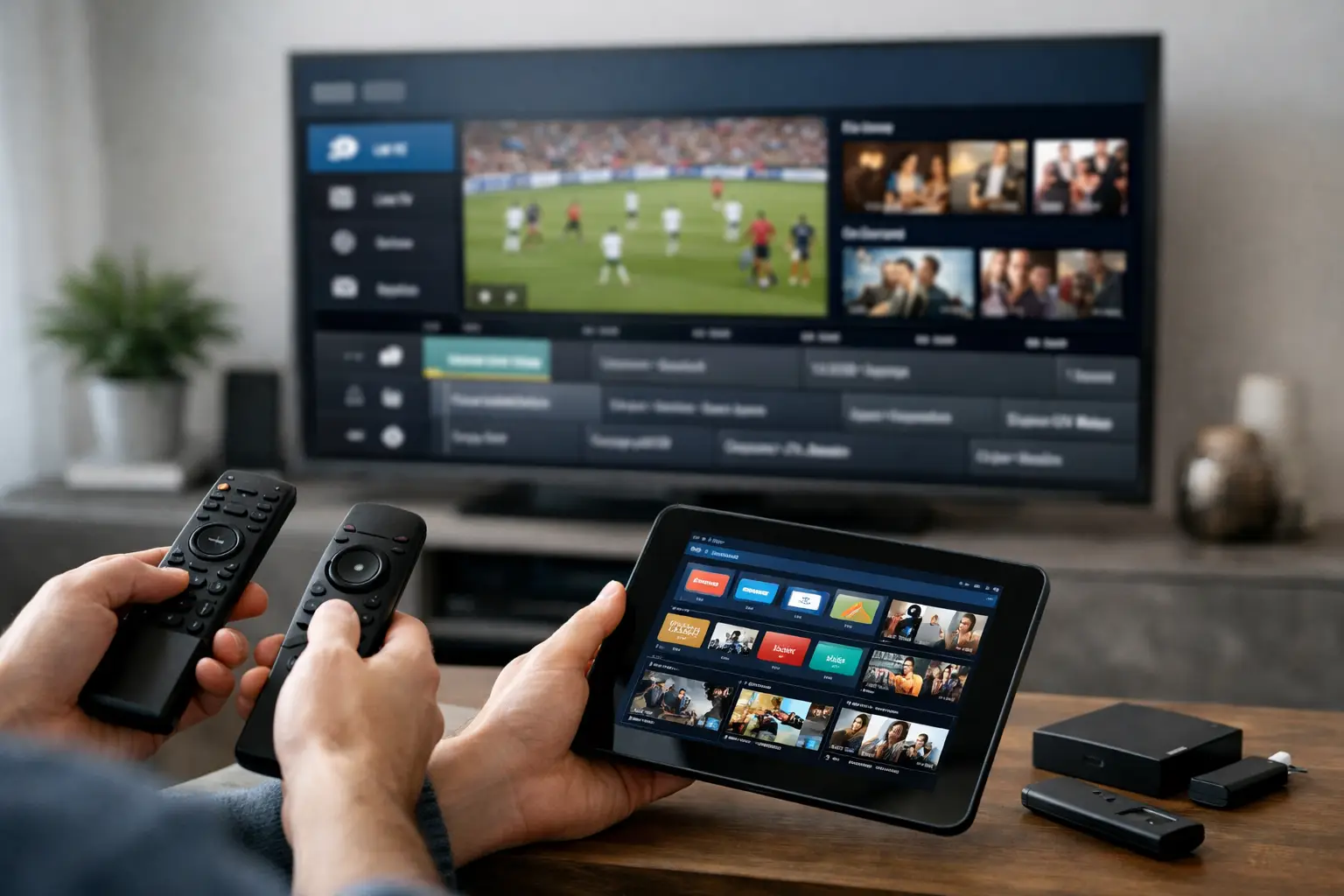
A television can have a large 4K screen and still be the wrong choice for IPTV if its app store, processor, or network connection creates problems. A useful smart tv iptv comparison starts with the details that affect everyday viewing: whether your preferred player is available, how quickly channels load, and whether everyone in the family can find live TV, archives, and movies without a complicated setup.
For Russian-speaking households in the United States, the right setup should do more than play a channel list. It should make familiar Russian, Ukrainian, and regional programming available on the devices already at home, from the main living-room TV to a phone or tablet. Here is what to compare before choosing how to watch IPTV on a Smart TV.
Smart TV IPTV Comparison: TV App or TV Box?
The first decision is whether to run IPTV directly on the Smart TV or use a separate TV box. Both options can work well. The best choice depends on your television model, viewing habits, and how much flexibility you want.
A Smart TV app is the simplest route. Install a compatible IPTV player, enter the playlist or account details, and watch on the television without adding another device or remote control. This is a good fit for viewers who want a clean setup and primarily watch live channels, films, series, and archived programs in one room.
A TV box connects to the television through HDMI and runs its own operating system. It can be a better option when an older Smart TV has limited apps, slow performance, or little remaining storage. A separate box also gives you more control over player choice and can make navigation faster, especially for large channel catalogs.
The trade-off is convenience versus flexibility. A built-in TV app keeps the setup simple. A TV box adds one small piece of hardware but may offer better performance and broader app support. If your current television works smoothly with a compatible player, there is usually no reason to replace it just for IPTV.
Start With Your TV Operating System
The name on the front of the TV matters less than the operating system behind it. Before subscribing, check which platform your television uses and which IPTV players it supports.
Android TV and Google TV models are often popular because they support a wide choice of IPTV apps. Users can select a player that fits their preferences for channel groups, favorites, program guides, and archive navigation. This is helpful for households that want to organize many channels or use different viewing profiles.
Samsung Smart TVs use Tizen, while LG models use webOS. Both platforms can offer capable IPTV player options, but app availability can vary by TV model, country, and software version. Check the app store directly on your specific TV rather than assuming an app available on a newer model will appear on an older one.
Roku, Fire TV, and Apple TV can also be practical streaming platforms, but compatibility depends on the player and the format supplied by the service. If you already have one of these devices connected to your television, it may be easier to use it than to change the TV itself.
For viewers who prefer third-party m3u8-compatible players, options such as VLC, OTT Navigator, and Televizo can provide a familiar way to use a playlist on supported devices. The key is not choosing the most technical app. Choose one that your household can use comfortably every day.
Compare Picture Quality With Your Internet Connection
HD, Full HD, 4K, and 3D labels can look impressive, but picture quality depends on more than the channel stream. Your TV, internet plan, Wi-Fi signal, and number of active devices all affect the result.
For a single HD stream, a stable connection is usually more valuable than very high advertised speed. If several people are streaming, gaming, or making video calls at the same time, the household needs more available bandwidth. A 4K stream requires even more capacity and a TV that supports 4K playback. Watching a 4K channel on a Full HD screen will not create a 4K picture.
Wi-Fi placement matters as well. A router in another room, behind thick walls, may cause buffering even when the internet plan is fast. If the main television is close enough to the router, an Ethernet cable is often the most dependable solution. If a cable is not practical, use a strong 5 GHz Wi-Fi connection when supported by both the router and device.
Do not judge IPTV quality only during one test channel. Try a live channel, an archived broadcast, and a film at the time your household normally watches. Evening viewing can reveal home-network issues that are not noticeable in the morning.
Live Channels Are Only Part of the Experience
A Smart TV IPTV comparison should also include the content tools around live television. For many families, archive access is as useful as the live channel list. It lets you return to programs that aired earlier, so a missed news program, concert, children’s show, or sports broadcast does not have to be missed completely.
Look at how the player displays the program guide and archive. A good interface makes it easy to see what is currently on, what aired earlier, and what is coming next. Search and favorites are also valuable when a service includes thousands of channels. Without them, a broad catalog can feel harder to use than it should.
On-demand content deserves the same attention. A library of movies, cartoons, series, documentaries, concerts, clips, and TV shows gives the household more options when there is nothing specific to watch live. Parents may want easy access to cartoons, while adults may prefer films, news, entertainment, or sports programming. One subscription that covers different viewing needs can be more convenient than switching between separate apps.
Check Navigation Before You Commit
The remote control experience is easy to overlook until it becomes frustrating. Some IPTV apps are designed well for a TV remote, with large menus, clear categories, and simple playback controls. Others are better on a phone or tablet than on a television.
Try to find out whether the player supports channel favorites, recently watched channels, subtitles where available, and easy switching between live TV and archives. These features save time every day. They are especially helpful for family members who do not want to scroll through a long channel list to find their regular programs.
If you use a TV box, consider whether its remote is comfortable and whether it supports voice search or a Bluetooth connection. A small wireless keyboard is optional, but it can make entering playlist details easier during setup. After that, most viewers should be able to use the regular remote.
Multi-Device Viewing Makes a Difference
A television is often the main screen, but it should not be the only screen. A practical IPTV subscription lets viewers continue watching from a smartphone, tablet, computer, or another compatible device when the living-room TV is busy.
This matters in real households. One person may want news on the Smart TV while another watches a series on a tablet. Someone traveling may want familiar Russian-language programming on a laptop. Before choosing a service, confirm the supported device types and how many connections are included or available under the plan.
Russia Plus TV is designed for this kind of flexible viewing, with more than 3,500 channels and access across Smart TVs, TV boxes, phones, tablets, computers, dedicated apps, and compatible third-party players. That range is useful when a household has a mix of devices rather than one single TV platform.
Choose the Setup You Will Actually Use
The best Smart TV IPTV setup is rarely the most expensive television or the app with the longest feature list. It is the one that displays channels clearly, works reliably on your home network, and makes Russian-language entertainment easy to find for every member of the family.
Check your TV operating system first, then confirm player compatibility, network quality, archive access, and multi-device options. If your current Smart TV is slow or limited, adding a compatible TV box can be a simple fix. The goal is straightforward: turn on the screen, choose what you want to watch, and stay connected to the programs that feel like home.