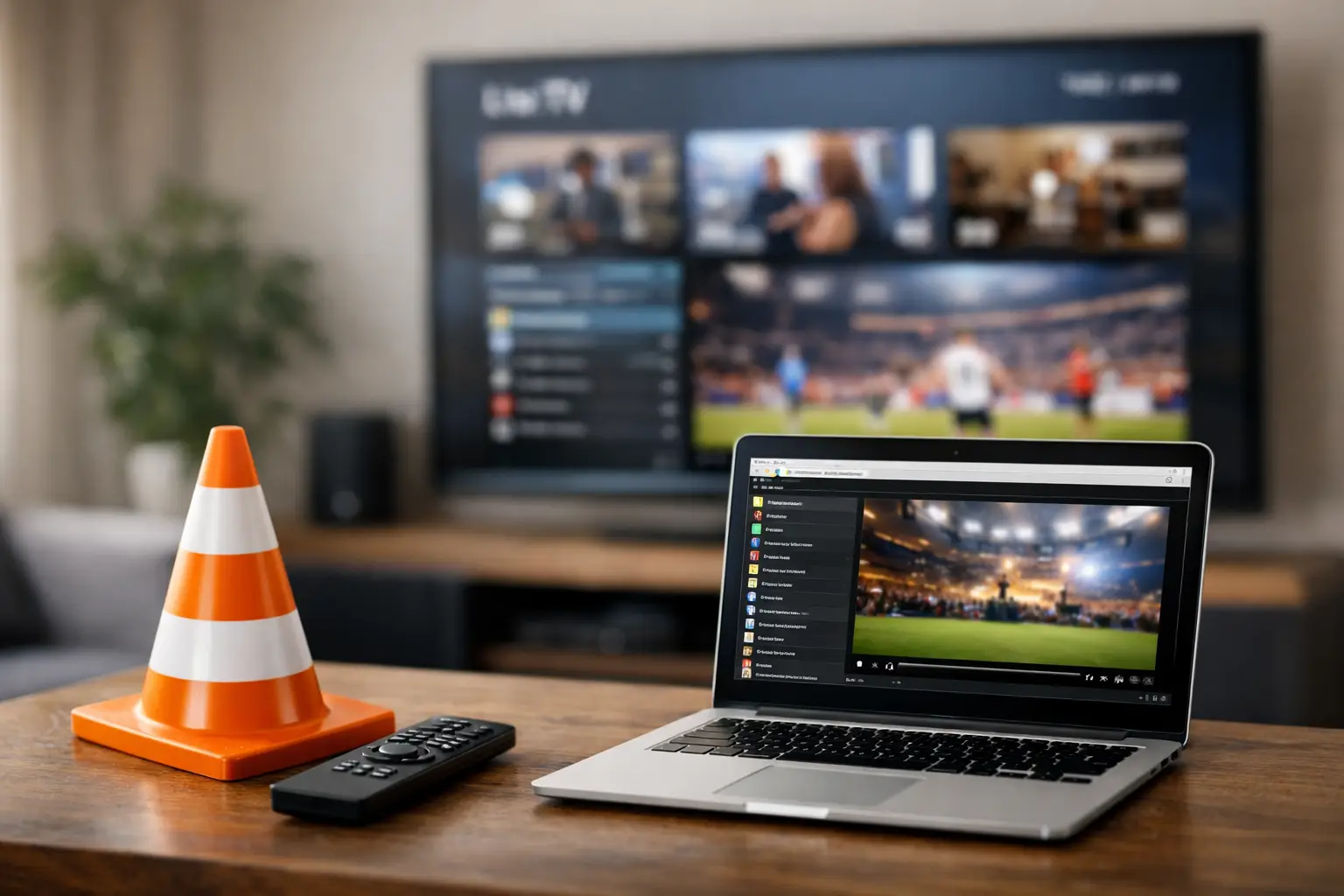
A familiar Russian news channel, a children’s cartoon, or an evening series should not require learning a complicated new app. That is why many subscribers start with VLC. In this VLC player for IPTV review, we look at what the free media player does well, where it feels limited, and whether it is a practical choice for watching IPTV on a computer.
VLC is not a dedicated IPTV platform. It is a flexible media player that can open an M3U or M3U8 playlist and play the live streams inside it. For viewers who mainly want reliable access to channels on a Windows PC or Mac, that simple approach can be exactly enough. For a household that expects a TV-style guide, favorites, catch-up controls, and an easy remote-friendly interface, a specialized IPTV app may be more comfortable.
VLC Player for IPTV Review: The Short Answer
VLC is a good no-cost option for IPTV viewing on a computer. It supports common playlist formats, plays many video and audio codecs, and does not require creating another account or installing a complicated TV service application. Once your IPTV provider sends a playlist, opening it in VLC takes only a few steps.
Its main advantage is simplicity. VLC has been used for years to play video files, so many people already recognize its controls. It is also useful when you want to test a playlist, watch a single stream, or use a computer that does not have a Smart TV or Android TV box nearby.
The trade-off is that VLC was designed as a general media player, not as a full IPTV experience. Large channel lists can feel harder to organize. Electronic program guide support is limited compared with dedicated IPTV players, and switching among hundreds or thousands of channels is not as convenient as browsing a modern TV app.
What VLC Does Well for IPTV
For live television, VLC is dependable when the internet connection and playlist are working properly. It can handle M3U and M3U8 playlist files and network playlist addresses, which makes it compatible with many IPTV subscriptions. You can view the channel list in VLC’s playlist window, double-click a channel, adjust the volume, choose full-screen mode, and select an audio track or subtitle track when available.
This flexibility matters for Russian-speaking families who watch different kinds of programming. One person may want live news, another may choose a music channel, and children may watch cartoons. VLC does not limit the type of stream you can open. The content available depends on the IPTV subscription, while VLC provides the playback window.
VLC also gives users useful technical controls. If a stream begins too quickly or plays inconsistently on an older computer, network caching settings can sometimes help. The player can switch aspect ratios, select a video deinterlacing option, and output sound to connected speakers or headphones. These are practical benefits for viewers who use a laptop connected to a television.
Another advantage is cost. VLC is free to install and use. If you already have an active IPTV playlist, there is no additional player fee. That makes it a sensible starting point before deciding whether a dedicated IPTV application is worth using on the same device.
How to Watch IPTV in VLC
The basic setup is straightforward. Your provider will typically send either a playlist link or a playlist file after purchase. Keep that information private, since it provides access to your subscription.
Open VLC, select Media, then choose Open Network Stream if you received a playlist URL. Paste the address exactly as provided and select Play. VLC will load the playlist and begin a channel. To see other available channels, open View and select Playlist.
If your provider supplied an M3U file instead, choose Media and then Open File. Select the downloaded playlist file. The same playlist panel will show the channels included with your plan.
For the best experience, use a stable home connection. HD and Full HD channels need more consistent bandwidth than lower-resolution streams, and 4K content places even greater demands on your connection and computer. If playback pauses or buffers, first test another channel. If multiple channels have the same problem, restart VLC and check your home internet connection before changing advanced settings.
Where VLC Can Feel Limited
The biggest limitation is navigation. A subscription with a broad selection can include news, movies, sports, children’s programming, regional channels, and entertainment in one playlist. VLC displays this list, but it does not always make browsing a large catalog feel like using cable television or a Smart TV app.
Finding a channel may require scrolling through the playlist or using search. Favorites and channel groups may depend on how the playlist was prepared by the provider. VLC does not offer the polished category pages, visual channel logos, and simple remote navigation that many dedicated IPTV applications provide.
Program guide and archive viewing are another consideration. IPTV services may offer channel archives or catch-up programming, but VLC’s ability to present those features depends on the playlist format and service configuration. If replay television is a priority, use the provider’s recommended app or a player built specifically for IPTV. Those options are usually better at displaying schedules and making past broadcasts easy to find.
VLC is also best suited to a computer user who is comfortable using a keyboard and mouse. It can work when a PC is connected to a television, but it is not the most natural choice for a living-room setup with a remote control. Smart TV apps, TV boxes, and mobile IPTV players can provide a more familiar television interface.
VLC Versus a Dedicated IPTV App
The choice comes down to how you watch. VLC is ideal when you want a quick, free, uncomplicated way to open a playlist on a desktop or laptop. It is especially useful for occasional viewing, checking whether a playlist is active, or watching live channels while traveling with a computer.
A dedicated IPTV app is the better option when television is part of the daily household routine. These apps generally make it easier to sort channels, save favorites, use an electronic guide, access archives, and move through categories from the couch. They can also be more convenient on Android TV devices, Fire TV-style streaming devices, smartphones, and tablets.
There is no need to treat the decision as permanent. Many subscribers use VLC on a computer and a dedicated app on their primary television. The same subscription can fit different screens and different viewing habits, as long as the plan supports the desired device access.
Is VLC a Good Match for Russian-Language IPTV?
Yes, if your goal is direct access to live Russian-language and regional television on a computer. VLC can play the channels supplied in a compatible playlist without adding complexity. It is a practical route for watching news, entertainment, films, series, concerts, sports, and children’s content when you are at a desk or using a laptop.
For viewers who want one subscription with extensive live TV, on-demand entertainment, and device flexibility, Russia Plus TV can be used with M3U8-compatible players such as VLC. The service is particularly useful for families who want familiar programming across more than one screen, from a computer during the day to a TV or mobile device later.
Before choosing VLC as your main player, think about what you use most. If live channels are the priority, VLC may be all you need. If you regularly browse channel archives, depend on a program guide, or want an interface that feels more like traditional TV, choose a dedicated IPTV player for your main screen and keep VLC as a convenient backup.
A good IPTV setup should make it easy to press play when the program you want is on. Try VLC first on the computer you already use, then select the player that makes your household’s daily viewing simplest.