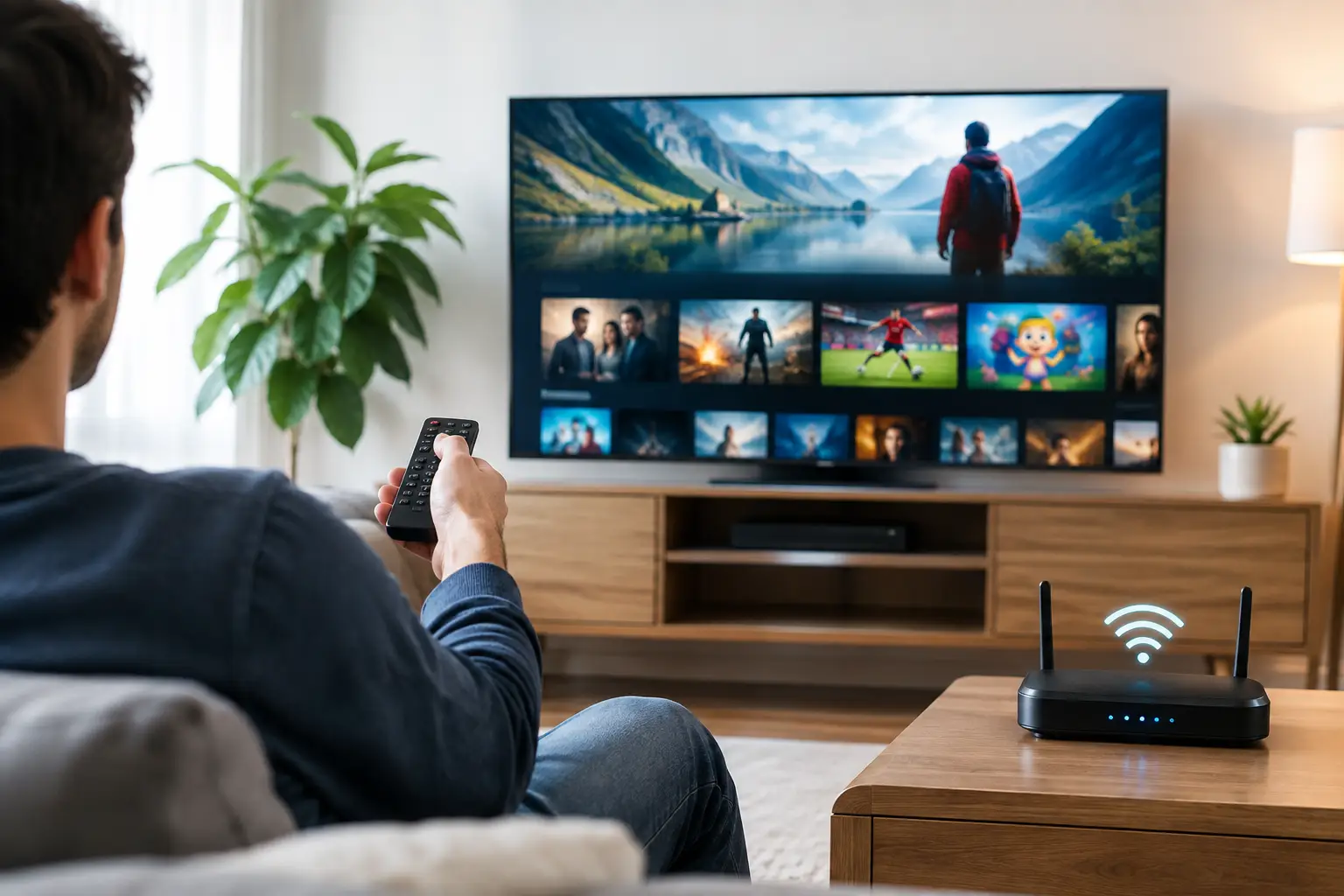
A live channel can look perfect one minute and pause the next, even when your internet plan seems fast enough. The difference is often not the advertised speed alone. This guide to IPTV internet speed explains what your household actually needs for stable viewing, whether you watch Russian news in HD, sports in Full HD, movies in 4K, or several programs at once on different devices.
For IPTV, a consistent connection matters more than an impressive number on a provider’s bill. Your TV stream shares the same home network with phones, laptops, video calls, gaming consoles, smart speakers, and other connected devices. Planning for real household use helps avoid buffering when everyone is online.
What Internet Speed Does IPTV Need?
Internet speed is usually measured in Mbps, or megabits per second. It tells you how much data your connection can download each second. IPTV uses that data continuously while you watch, so your available speed needs to stay comfortably above the needs of the video stream.
A single stream can work at lower speeds, but minimum requirements do not leave much room for Wi-Fi interference or other activity in the home. These are practical starting points for one device:
- Standard-definition channels: 5 Mbps or more
- HD channels: 10 Mbps or more
- Full HD channels: 15-25 Mbps or more
- 4K channels: 30 Mbps or more
These figures are for the stream itself, not necessarily the internet plan you should buy. A household that watches one Full HD channel while someone else scrolls social media may be fine with a 50 Mbps plan. A family watching two or three high-quality channels while using phones, tablets, and computers will benefit from 100 Mbps or more.
The right number also depends on your provider’s performance at busy times. A plan advertised as 100 Mbps may test lower during evening hours. That does not automatically mean there is a problem, but it is a reason to leave extra capacity instead of choosing a plan that only meets the minimum.
Guide to IPTV Internet Speed by Household Use
The easiest way to choose a plan is to count the streams that may run at the same time. Do not count only the TV in the living room. Consider a child watching cartoons on a tablet, a family member using channel archives in another room, or a computer downloading updates in the background.
For a one-person household that usually watches one HD or Full HD channel, 25-50 Mbps is often sufficient if the connection is reliable. For two to three active viewers, 75-100 Mbps provides more comfortable room for HD and Full HD viewing. Larger households, frequent 4K viewers, and homes with several connected devices should consider 150 Mbps or higher.
Upload speed is less critical for watching IPTV than download speed. Still, a very limited upload connection can create problems when someone is on a video call, uploading files, or using a security camera system. If your household regularly works from home, choose a balanced plan when possible.
It also helps to distinguish between internet speed and data limits. Some internet services have monthly data caps. High-quality video can use a substantial amount of data over time, especially 4K programming. Check your plan if you watch many live channels, films, series, or recorded broadcasts every day.
Why a Fast Plan Can Still Buffer
If a speed test shows good results but your channel freezes, the issue may be inside the home rather than with the internet plan. Wi-Fi signal strength changes from room to room. Walls, floors, distance from the router, neighboring networks, and older equipment can all affect the connection to your Smart TV or TV box.
A wired Ethernet connection is the most dependable option for a stationary television or set-top box. Connecting the device directly to the router reduces wireless interference and usually gives the most stable picture for Full HD and 4K channels. If a cable is not practical, place the router in an open, central area rather than inside a cabinet or behind the TV.
The 5 GHz Wi-Fi band is often a better choice for IPTV than 2.4 GHz when the TV is reasonably close to the router. It can deliver higher speeds and faces less interference, although its range is shorter. The 2.4 GHz band can be useful in a distant room, but it is more likely to be crowded by other household devices.
Older routers can become a bottleneck even with a fast internet plan. If your router is many years old, disconnects often, or cannot handle several devices well, upgrading it may solve issues that a faster plan will not. A mesh Wi-Fi system can also help in larger homes, apartments with difficult layouts, or rooms far from the main router.
Check Your Connection Before Changing Plans
Run a speed test on the same device you use for IPTV, in the same room and at the time you normally watch. Testing on a phone next to the router does not show what your Smart TV receives across the house. Test once when the network is quiet, then test again during your usual evening viewing hours.
For a useful result, temporarily pause large downloads and ask other household members to stop streaming for a few minutes. Compare the measured download speed with the quality you watch. If your Full HD stream needs around 15-25 Mbps but the TV only receives 12 Mbps over Wi-Fi, buffering is understandable.
Speed is only one part of the picture. Look for a connection that stays steady during repeated tests. A connection that jumps from 80 Mbps to 5 Mbps can cause more trouble than one that consistently delivers 30 Mbps for an HD stream. If results are much lower than your plan allows, restart the router and modem first. If the problem continues, contact your internet provider and ask them to check the line and equipment.
Simple Changes That Improve IPTV Viewing
Start with the change that matches the problem. If buffering happens only on one TV, focus on that device’s Wi-Fi signal, app settings, or Ethernet connection. If every device slows down at the same time, the issue is more likely your internet service, router capacity, or too many active users.
Restarting the router can clear temporary connection issues, particularly after it has been running for a long time. Keep its software updated if the manufacturer provides updates. On Smart TVs and TV boxes, install current system and player updates as well. Compatibility and playback performance can improve with newer software.
Try closing unused apps on a TV box, phone, or tablet. Devices with limited memory can slow down when many apps stay open. If you use an m3u8-compatible player, make sure it is updated and configured for the correct playlist. A reliable player and a stable home connection work together.
Avoid placing the router next to microwaves, cordless phone bases, large metal objects, or other electronics that may interfere with wireless signal. For a far bedroom or basement TV, a mesh node or Ethernet cable is usually a better long-term answer than repeatedly restarting the app.
Choose Speed for How Your Family Watches
There is no need to pay for the highest available internet tier if your household watches one HD channel at a time. At the same time, choosing the cheapest plan can be frustrating when the whole family wants familiar programming in different rooms. The best value is the plan that handles your busiest evening without forcing anyone to stop what they are watching.
Russia Plus TV can be viewed across Smart TVs, TV boxes, computers, smartphones, and tablets, so it makes sense to plan for the devices your family uses now and the ones you may add later. A little extra internet capacity is especially useful for households that combine live television, channel archives, movies, series, and sports across several screens.
Before changing your subscription, test your connection where you actually watch. A wired connection, better router placement, or a stronger Wi-Fi setup may give you the stable viewing experience you want without paying for speed you will never use.