
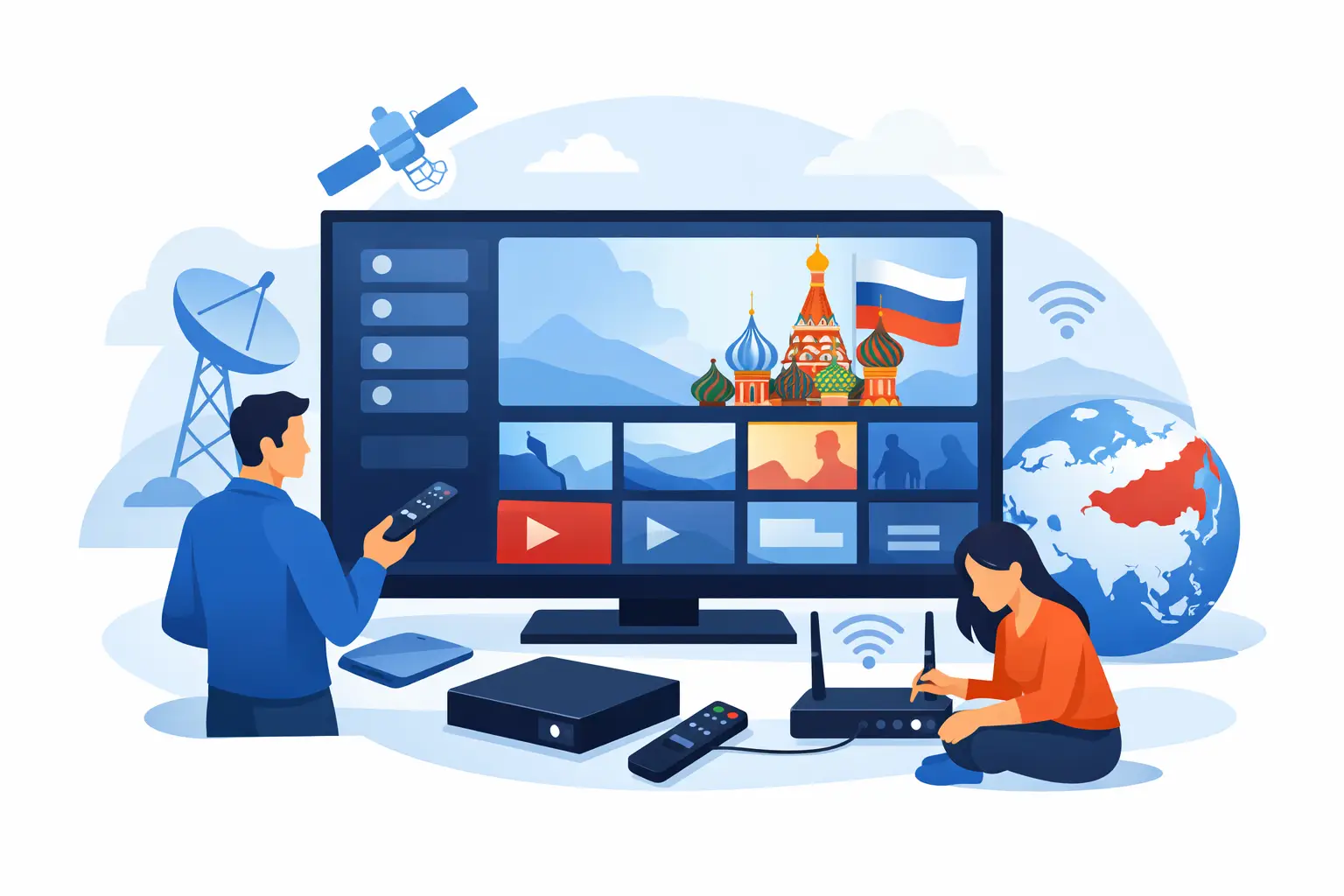
If your goal is simple – turn on the TV and watch Russian channels without fighting menus, codecs, or confusing app settings – a proper russian iptv smart tv setup matters. The good news is that most modern Smart TVs can handle IPTV very well. The difference usually comes down to choosing the right app, using the correct playlist format, and setting it up in a way that works for your household every day.
For most viewers, this is not really about technology. It is about getting familiar channels, movies, kids’ programs, sports, and archived broadcasts onto the biggest screen in the house. If you live in the US and want reliable access to Russian-language content, Smart TV is often the easiest place to start because you do not need extra hardware in many cases.
What you need before you start
A smooth setup begins with three basics: a stable internet connection, a compatible Smart TV, and an active IPTV subscription or playlist. If your internet works well for streaming regular video, it will usually work for IPTV too. HD and Full HD channels need more consistency than raw speed, so weak Wi-Fi in the far corner of the house can cause more trouble than your internet plan itself.
The next piece is TV compatibility. Samsung, LG, Android TV, Google TV, and many other Smart TV platforms support IPTV apps, but they do not all use the same app store or installation process. That is why one household may finish setup in five minutes while another needs a different player.
You also need the login method provided by your service. In most cases, that will be an M3U or M3U8 playlist, Xtream Codes details, or a portal URL. If you have those ready before opening the TV app, setup goes much faster.
Russian IPTV Smart TV setup on the most common TV platforms
The easiest way to think about russian iptv smart tv setup is this: your TV needs an IPTV player app, and that app needs your subscription details. Once the playlist loads, the TV organizes channels, categories, and sometimes archives depending on the app and the service.
Samsung and LG Smart TVs
Samsung and LG users usually install an IPTV player from the TV app store. After installation, the app will ask for a playlist URL, login credentials, or a device code. Some apps are very simple and built for basic live TV viewing. Others support channel logos, categories, program guides, favorites, and catch-up content.
This is where trade-offs matter. A lighter app may load faster and feel easier to use with a remote. A more advanced app may offer better sorting, search, and archive navigation, but the menu can be more complex. Families often prefer the cleaner option if multiple people use the TV.
Android TV and Google TV
Android TV and Google TV usually give you the most flexibility. You can often choose from more IPTV players and customize the experience more easily. If one app does not display categories the way you want, another one probably will.
This platform is especially useful if you want features like favorites, recent channels, or better support for video-on-demand libraries. It also tends to work well if you use the same service across a TV, phone, and tablet and want a familiar app experience on all devices.
When a TV app is not enough
Some older Smart TVs support IPTV, but not very well. The app may be slow, the remote navigation may feel clumsy, or the TV may not handle larger playlists smoothly. In that case, a set-top box or streaming device can be the better option even if your TV is technically compatible.
That does not mean your TV is the problem. It just means built-in Smart TV software can age faster than the screen itself. If you want quicker menus and better app support, an external device may give you a better day-to-day experience.
How to set up your playlist correctly
Once your app is installed, the next step is entering your subscription details exactly as provided. This is where many setup problems start. A single missing character in a playlist URL, username, or password can stop the app from loading channels.
If your service supports multiple login methods, choose the one recommended for your app. Some apps work best with M3U playlists. Others are more stable with Xtream Codes or portal-based login. If your provider includes EPG data for program schedules and archives, make sure that is added too. Without it, live TV may still work, but the guide can look incomplete.
After login, give the app a minute to load categories and channel data. Large packages with thousands of channels, films, and archived programs may take longer on the first sync. That is normal. Once loaded, most apps perform much better after the initial setup.
Getting the best picture and fewer interruptions
A successful setup is not just about making channels appear. It is about making them easy to watch every day. If buffering shows up often, start with your Wi-Fi. A TV far from the router can struggle even when phones in the same room seem fine. Smart TVs are not always the strongest Wi-Fi devices in the house.
If possible, use Ethernet for the most stable connection. If that is not practical, moving the router, using a mesh system, or connecting to a less crowded Wi-Fi band can help. You can also lower video quality if the app offers that option, though most viewers prefer to fix the connection first rather than reduce picture quality.
App settings matter too. Some IPTV players let you change buffering size, decoder mode, or stream type. If playback is unstable, switching between hardware and software decoding can improve performance on certain TVs. It depends on the model and app, so there is no single setting that works for everyone.
Features that matter for families
For many households, IPTV is not only about live news or entertainment. It is about giving everyone something familiar to watch, from children’s content and movies to sports and replayed programs. That is why a good Smart TV setup should make navigation easy, not just technically functional.
Set up favorites early. This saves time and keeps the main screen manageable, especially if your subscription includes a very large catalog. Parents can group kids’ channels, adults can pin news and entertainment, and everyone spends less time scrolling.
Archives and catch-up are worth checking right away as well. Not every app displays them the same way. Some show a small clock icon or let you rewind from the guide. Others place archived content in a separate menu. If replay matters in your home, it is worth learning where that feature lives before you need it.
Common problems during russian iptv smart tv setup
The most common issue is simple: the app opens, but no channels appear. Usually that means the playlist details were entered incorrectly, the subscription is inactive, or the app does not support the login format you used. Double-check the credentials first before changing anything else.
Another common problem is that channels load but freeze or buffer. That usually points to connection quality, temporary network congestion, or app decoding settings. If the same subscription works well on a phone or tablet but not on the TV, the issue is often local to the TV connection or app configuration.
Some users also notice that the channel list is too large or hard to organize. That is not a service failure. It usually means the player app needs better filtering, favorites, or category settings. A good IPTV service can include thousands of options, but your viewing experience still depends on how the app presents them.
Choosing a service that makes Smart TV easier
Not all IPTV subscriptions are equally easy to use on television. A service may offer a huge channel count, but if setup support is weak or compatibility is limited, the value drops fast. For Smart TV users, what matters is not just content volume. It is stable playback, clear login instructions, archive support, and compatibility with common player apps.
That is where a service like Russia Plus TV fits naturally for many Russian-speaking households. It combines broad channel access with movie and series options, archive viewing, and support across Smart TVs, mobile devices, computers, and compatible third-party players. For families who want live television and on-demand entertainment in one subscription, that kind of flexibility matters more than flashy promises.
A setup that works every day is the real goal
The best Smart TV setup is not the one with the most menus or the most advanced app. It is the one that lets you sit down, pick a channel or movie quickly, and start watching without frustration. If you choose a compatible app, enter your playlist carefully, and make sure your TV has a stable connection, most IPTV setups are much easier than they first appear.
Start with the basics, keep the interface simple, and organize the channels you actually watch. Once that is done, your Smart TV stops feeling like a project and starts working like it should – a reliable home screen for Russian-language entertainment whenever your family wants it.